Uploaded Excel Files List
The Uploaded Files List screen allows you to view Excel shipment files that were previously uploaded within a specific date range. It’s a useful tool for tracking past uploads, reviewing shipment batches, and generating reports.
Accessing the Uploaded Files List
To open the list of uploaded Excel files, go to: Operations → Upload Excel → Uploaded List.
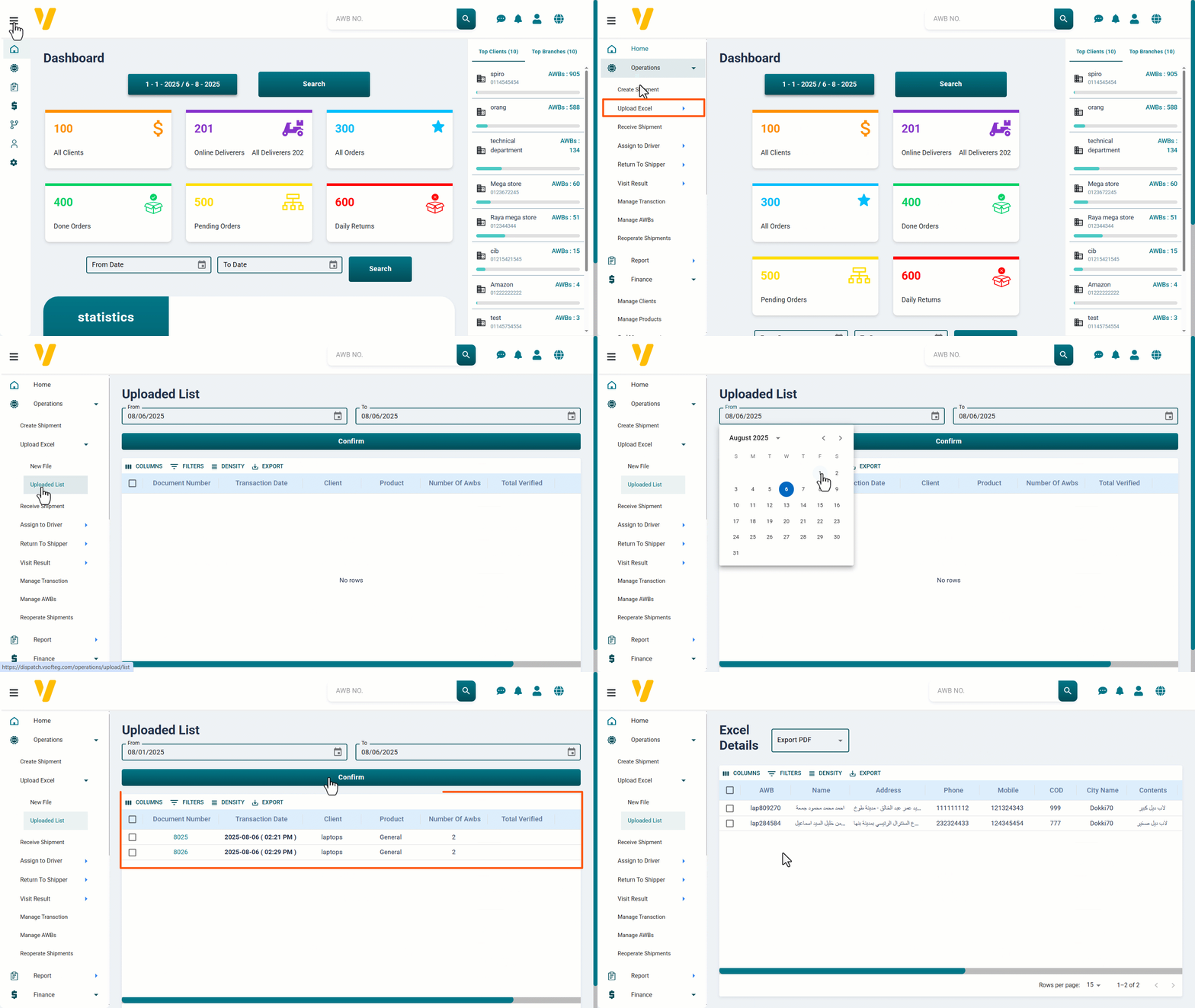
Viewing Files Within a Specific Date Range
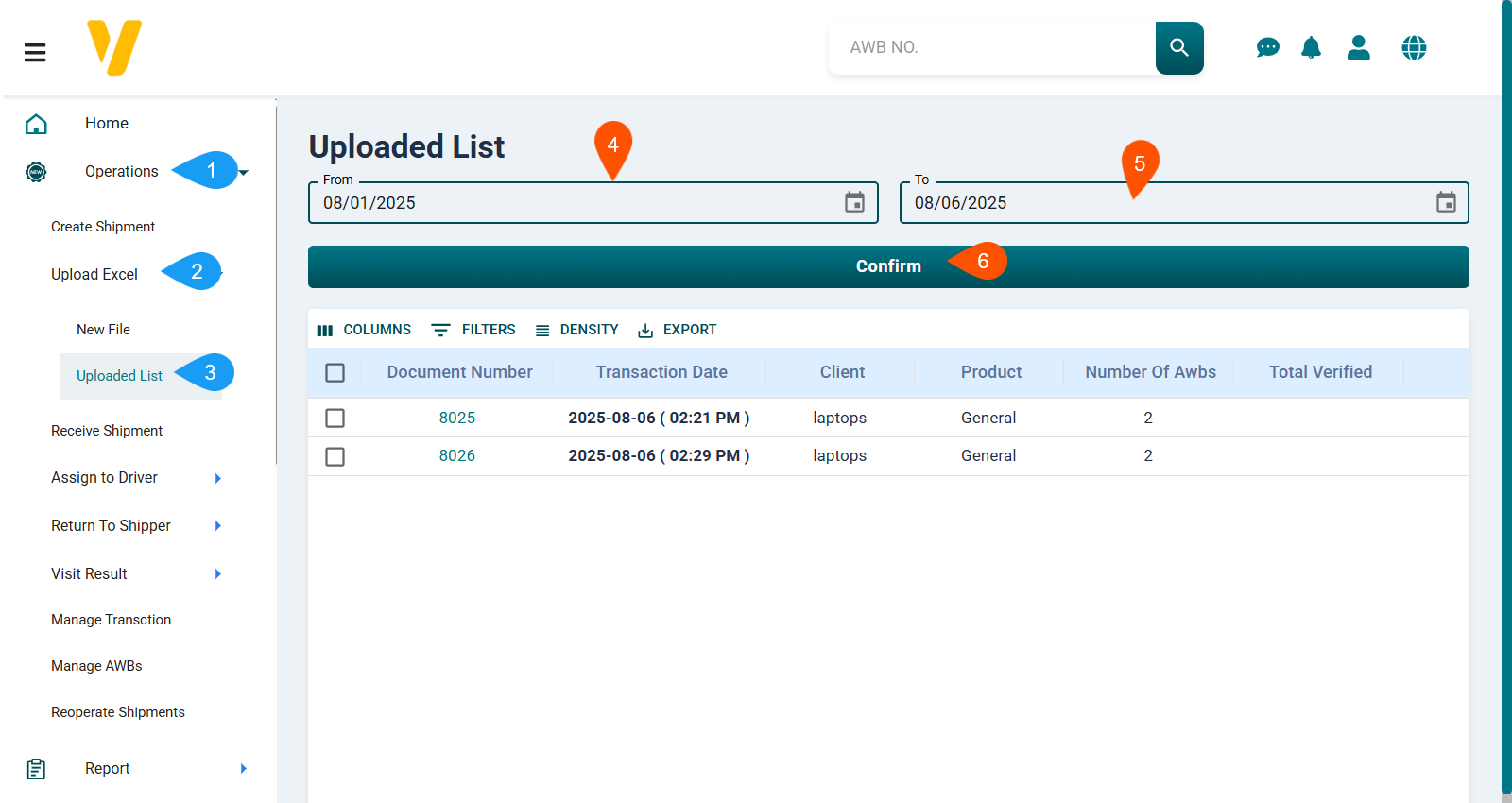
You can filter and view uploaded files based on a defined time range:
- Select the start date from the From field.
- Select the end date from the To field.
- Click Confirm to display all Excel files uploaded within that period.
Each uploaded file will appear with its Document Number, along with the upload date and time, client information, and the number of shipments included in the file.
Viewing Excel File Details
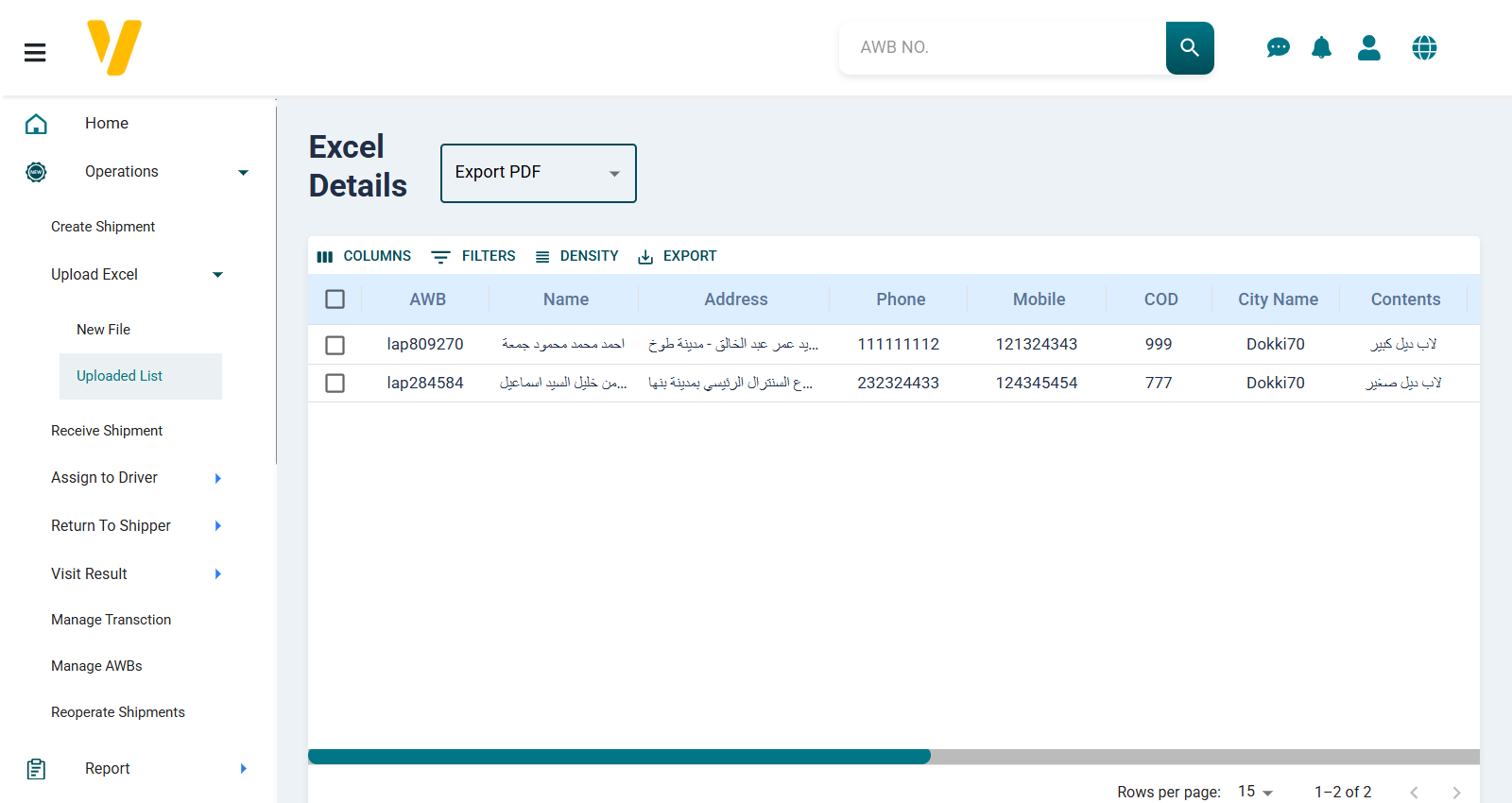
To review the details of a specific document, click on the Document Number of the file you want to check.
A dedicated table will open showing the shipment details contained in that document — meaning only the shipments that were part of the same upload process.
Tip: You can export the details of any upload as a PDF report by clicking the Export PDF button and selecting the appropriate template.