Assign to Couriers
From the Assign to Couriers tab, you can select a branch, then a courier, and assign them a task list. This list may include one or multiple shipments.
Step 1: Create a New Task List

- Open the Operations tab.
- Go to Assign to Couriers.
- Click the New List button.
- In the popup window, select the Branch.
- Then choose the Courier linked to that branch.
- Click Continue to proceed.
Note:
- Branches are created under:
Admin → Manage Branches- Couriers are added and linked under:
Admin → Manage Employees- Only couriers associated with the selected branch will be displayed.
Step 2: Configure the Task List
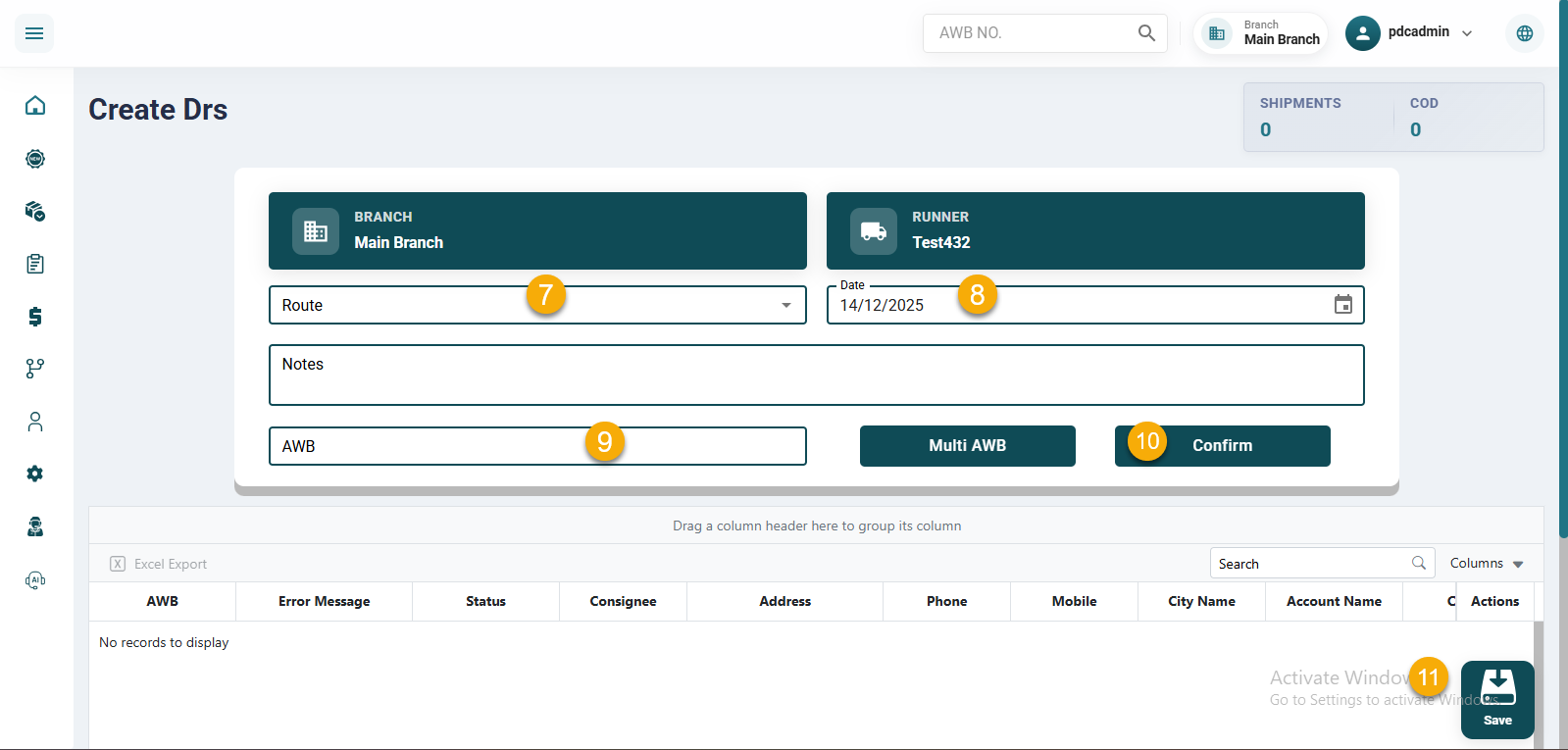
- Select the appropriate Route.
- The Date field is auto-filled with today’s date.
- Add any relevant comments in the Notes field.
- Assign shipments:
- For a single shipment: enter or paste the AWB number.
- For multiple shipments: click Multi AWB and enter the list.
-
Click Confirm to validate the entered shipments.
-
A summary will appear showing: the total number of assigned shipments and the total COD amount to be collected.
-
Click Save to create the Delivery Run Sheet (DRS).
Step 3: Post the Task List
After saving, the system redirects you automatically to the DRS List page. From here you can review, edit, or post the DRS so the courier can access it in their mobile app.
Post the DRS
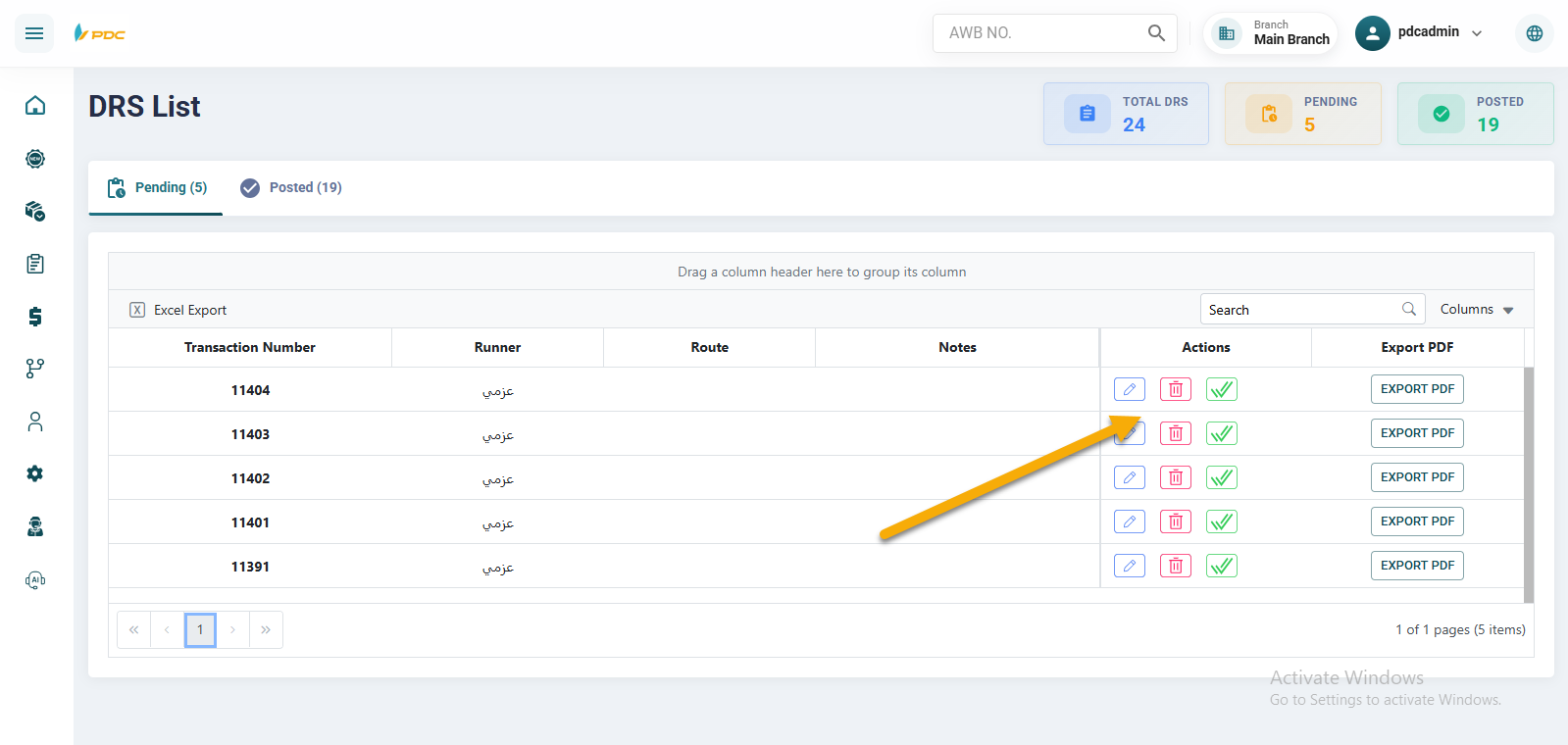
- In the Courier Task List → Pending tab, use filters to select the Courier.
- To edit a task list, click the pencil icon in the Actions column.
- To confirm and post the task list to the courier, click the green double checkmark icon.
Posting the task list ensures it is delivered to the courier and will appear in the MPS Runner app once synced.
Final Confirmation

- A confirmation dialog will appear.
- Click Post to finalize and move the task list to the Posted state.
- Click Close to cancel and keep the task list in Pending. This means it will not yet appear for the courier in the mobile app.