Manage Products
Products are closely linked to shipments — every shipment created must include a specific product.
To ensure consistency and prevent random entries by data entry staff, products are strictly predefined in the Finance ➡ Manage Products section. Once defined here, they automatically appear in all related areas of the system where product selection is required.
Access
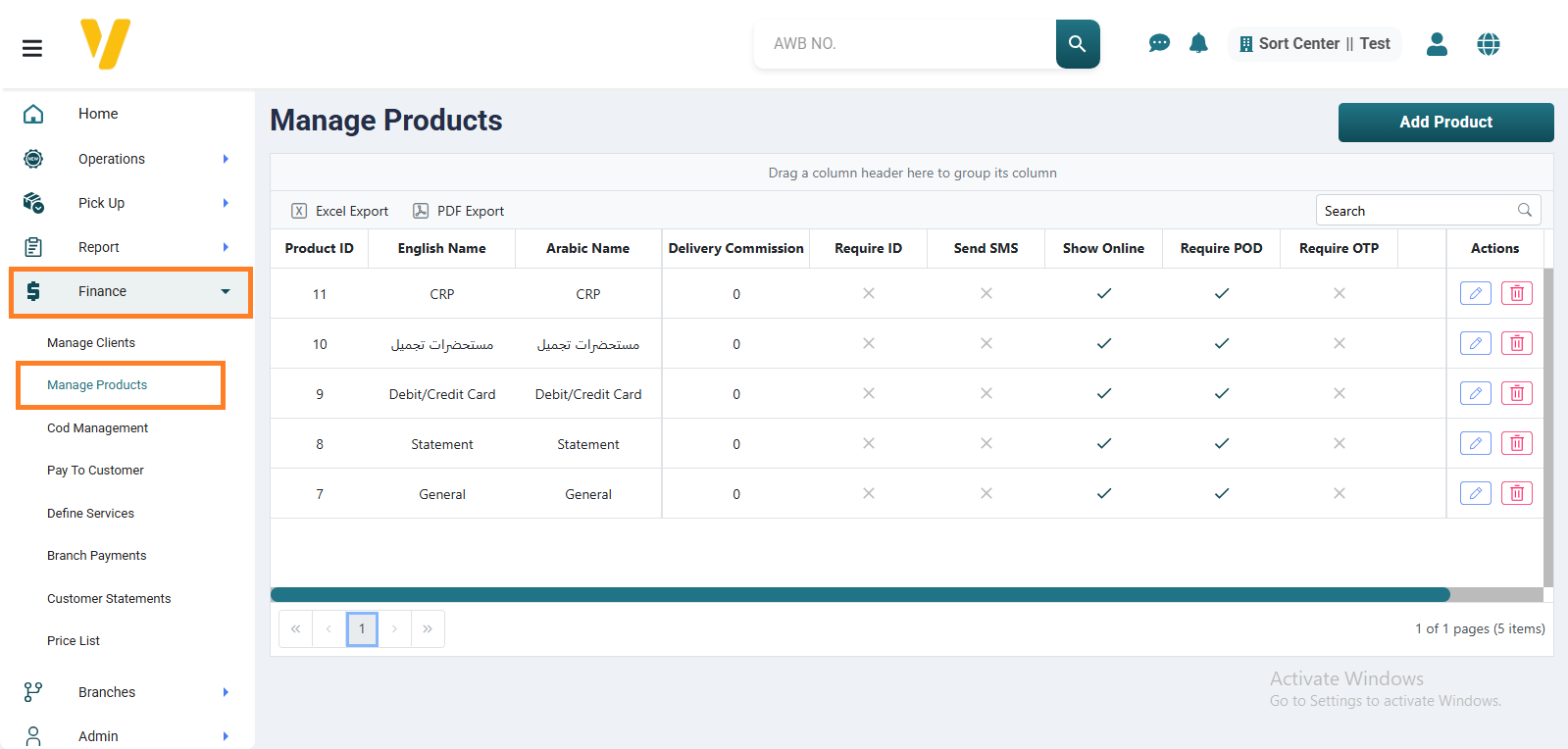
To view the list of currently available products, go to the Finance menu ➡ and select Manage Products.
The table will display all registered products along with their related settings such as delivery commission and visibility options.
Internal Actions
Here’s what you can do on the Manage Products page:
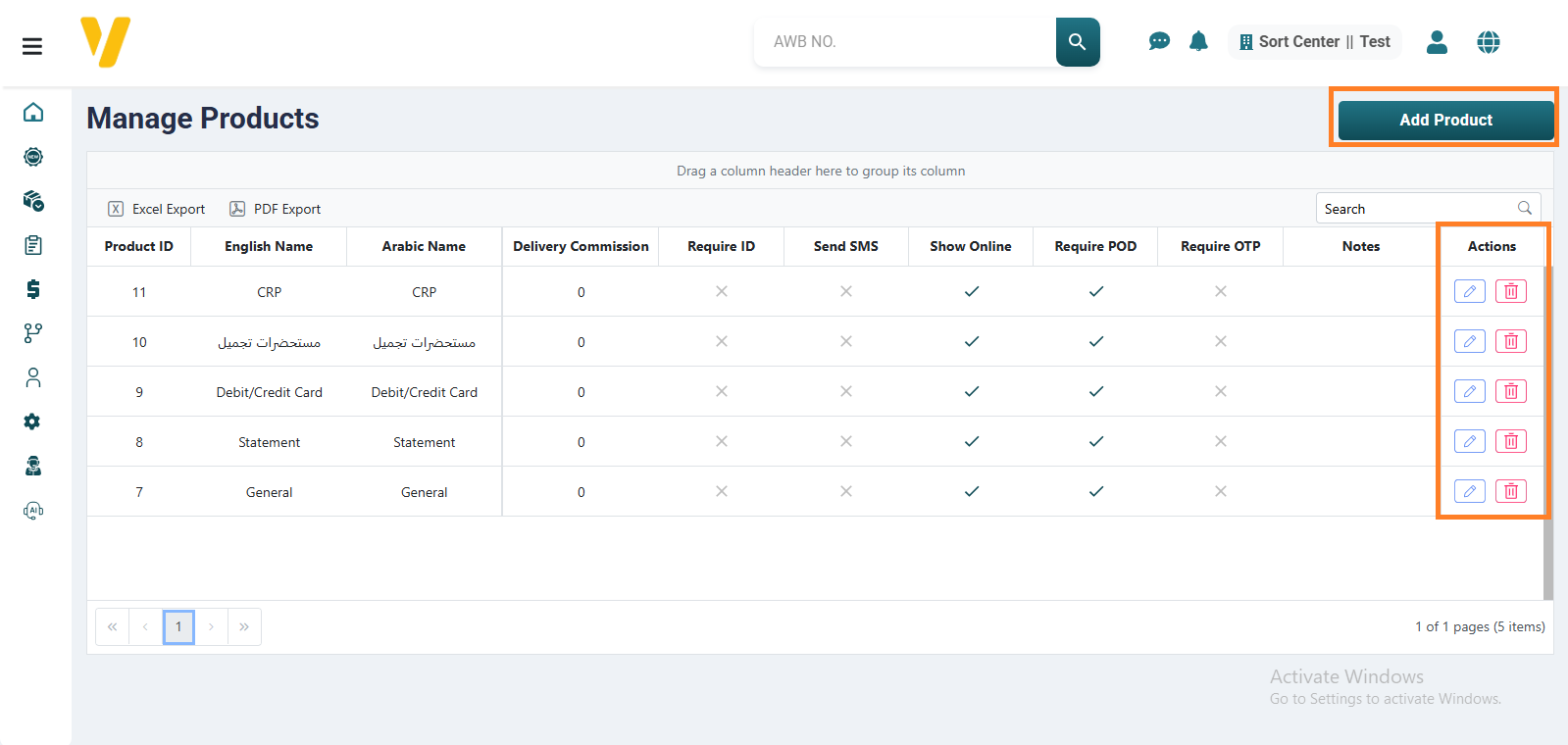
- Add a new product: Click the
Add Productbutton - Edit an existing product: From the
Actionscolumn, click theediticon - Delete an existing product: From the
Actionscolumn, click thedeleteicon
Add a New Product
To create a new product, click Add Product and fill in the required details:
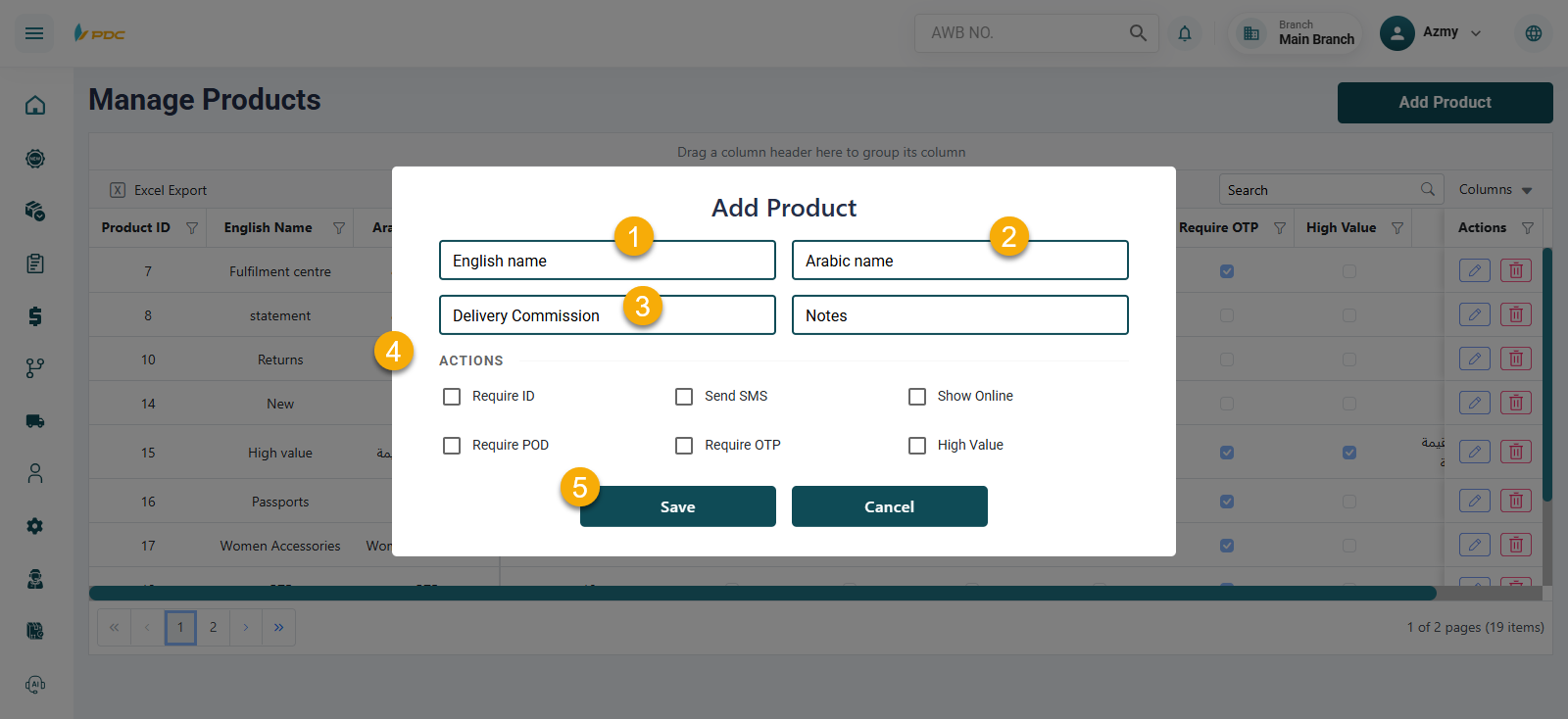
- Product name in English
- Product name in Arabic
- Delivery commission
- Control Options – currently includes five settings: Require ID, Send SMS, Show in Client App, Require POD, Require OTP
Control Options
- Require ID: The recipient must provide valid identification upon delivery.
- Send SMS: Sends confirmation SMS messages.
- Show in Client App: Makes the product visible in the client portal so they can select it when creating a new shipment.
- Require POD: Proof of Delivery — a document or receipt signed by the recipient.
- Require OTP: The shipment can only be delivered after the recipient enters the verification code received on their phone.
Once saved, the product becomes available.