Send Shipments
The Send Shipments page consists of four main sections:
- Pending Table – Displays shipments directed to other branches but not yet posted.
- Posted Table – Displays shipments that have already been sent and posted.
- Search Section – Allows you to filter results in both tables within a specific time range.
- New Button – Starts the process of sending a shipment to another branch.
How to Send a New Shipment to a Branch
From the sidebar, under Branches, select Send Shipments, then click New to start a new operation and follow these steps:
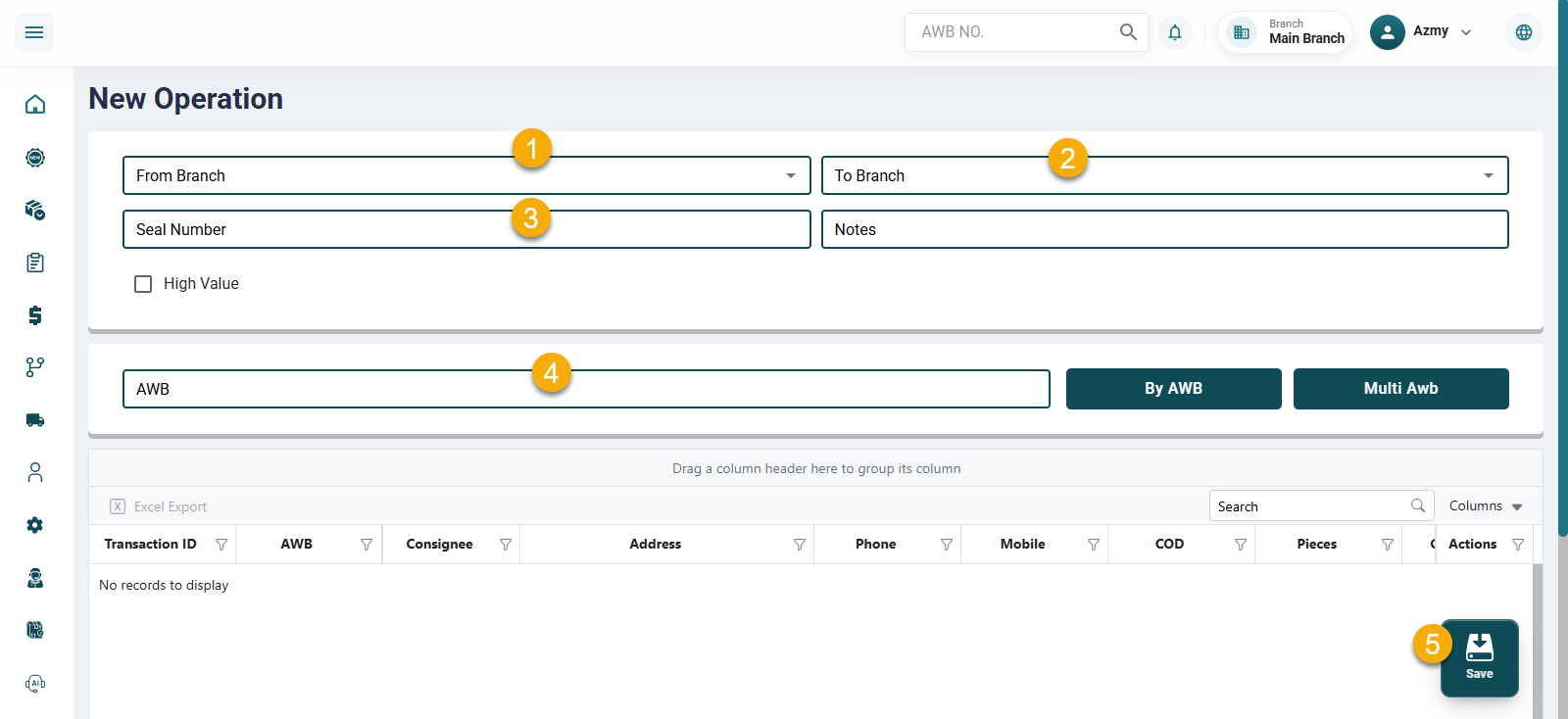
- In the From Branch field, select the branch the shipment will be sent from.
- In the To Branch field, select the branch the shipment will be sent to.
- If needed, add your comments in the Notes field.
- Enter or paste the AWB number, then click By AWB.
- If you have multiple shipments, click Multi AWB to open a box where you can enter all shipment numbers.
- Review the shipment details in the table.
- When finished, click Save.
Confirming and Posting Shipments
After clicking Save, you will return to the Send Shipments page, where the new operation will appear in the Pending Table.
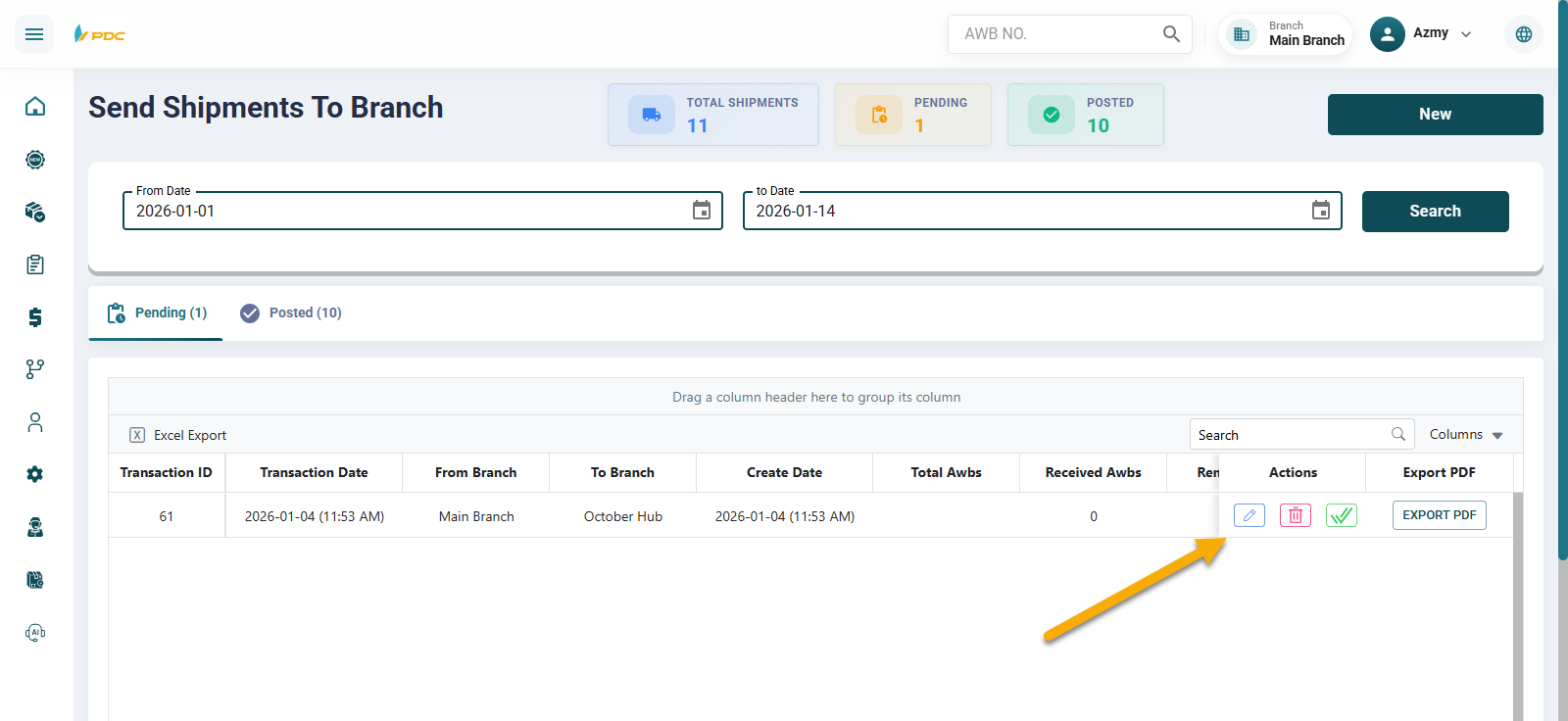
- Use filters to quickly find the operation you want to confirm and post.
- Once you find it, click the Post icon in the Actions column to confirm.
After confirmation, the operation will move to the Posted Table on the same page.