Interface Parts
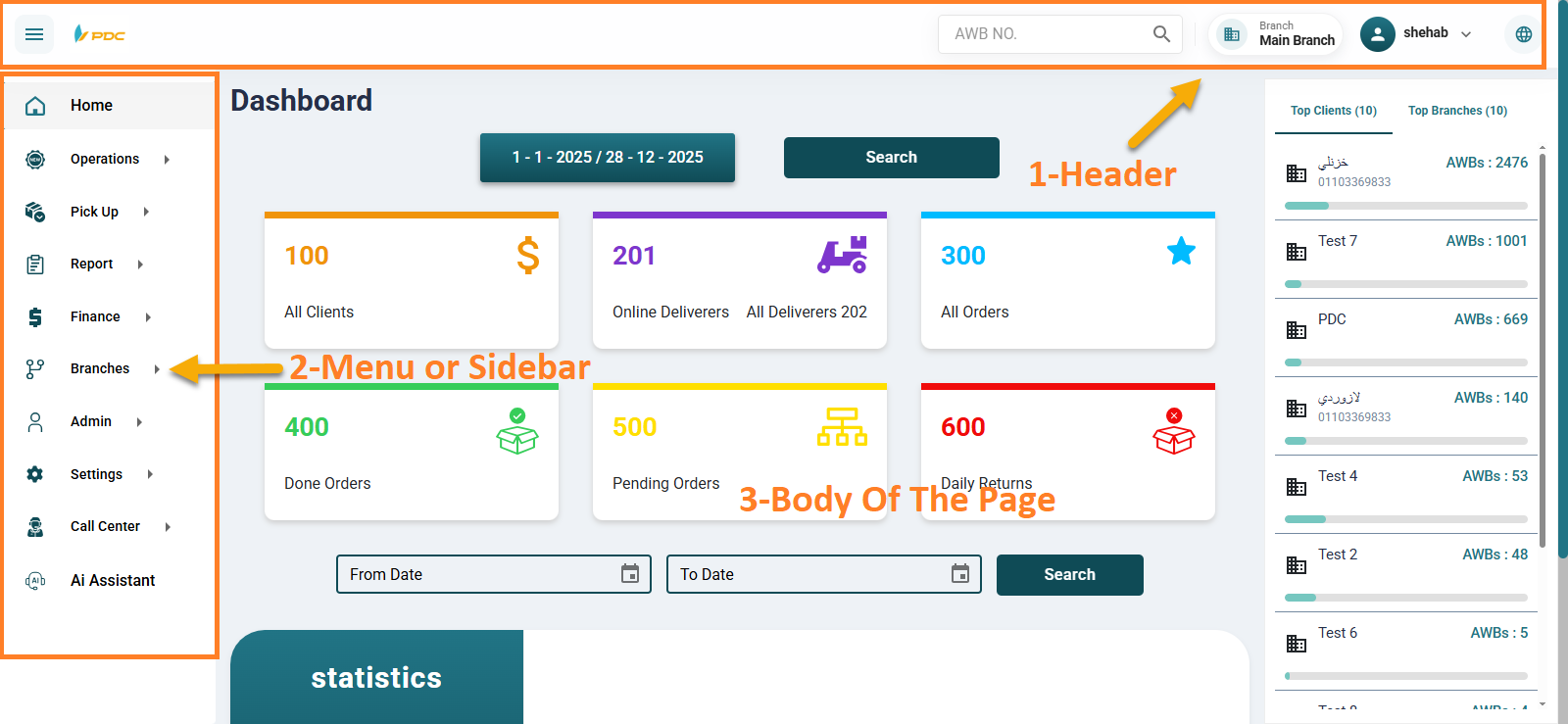
The main interface of the Dispatch App is divided into three core areas:
- 1. Header
- 2. Navigation Menu
- 3. Page Body
1: Header Overview
The header in the Dispatch App is designed for quick access and smooth navigation. It’s divided into three interactive sections:

- Logo & Sidebar Toggle
- AWB Search Bar
- Quick Action Icons
Logo & Sidebar Toggle
On the left, you’ll find the logo alongside a menu toggle icon.
- 🡆 Click once to expand the sidebar menu and view full tab names.
- 🡄 Click again to collapse it — showing icons only for a cleaner, wider workspace.
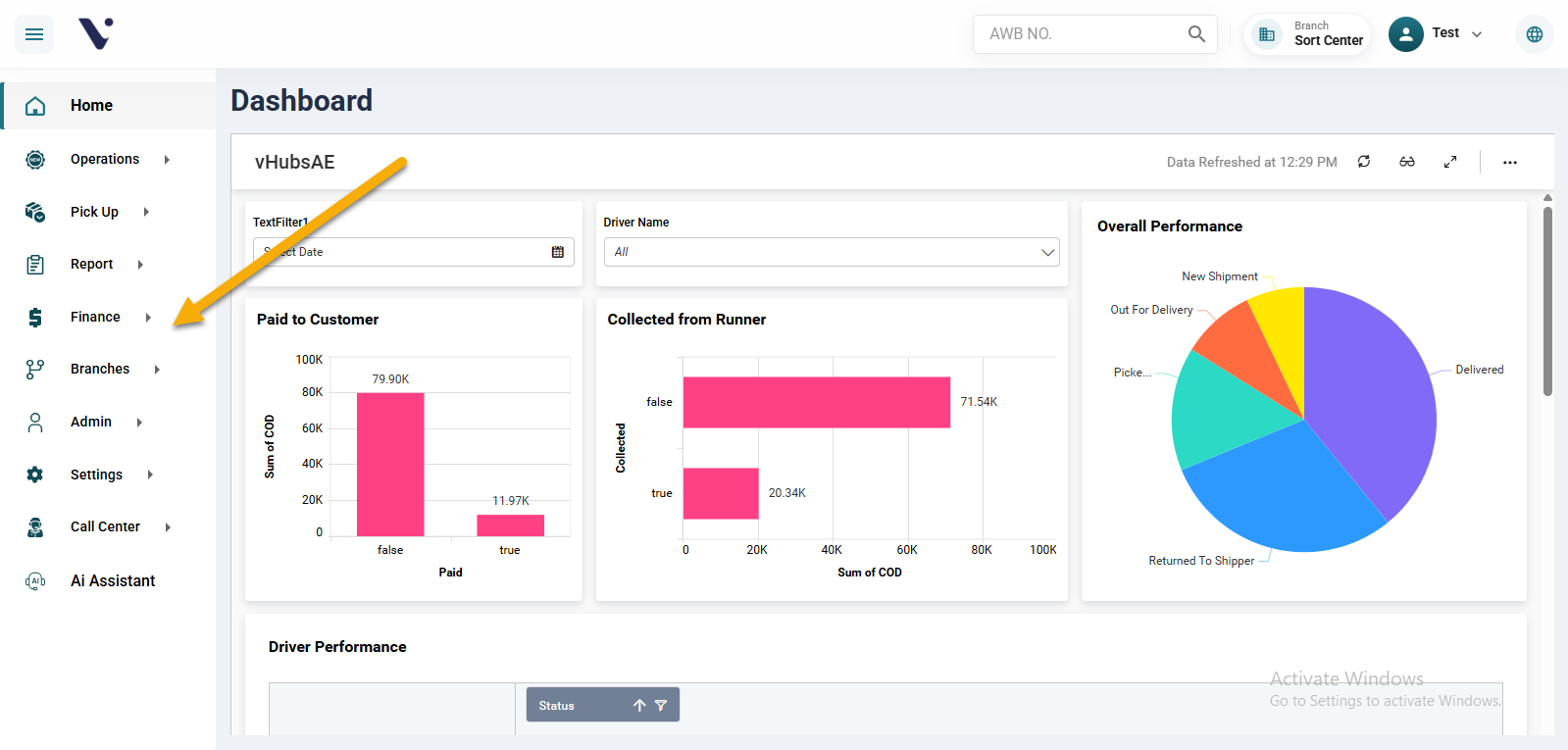
This allows users to control the layout based on their screen space and workflow preference.
AWB Search Bar
At the center, there’s a powerful tool: the AWB Search Bar.
- Type any shipment’s AWB number
- Press Enter
- Instantly view full shipment details — no need to navigate through multiple tabs
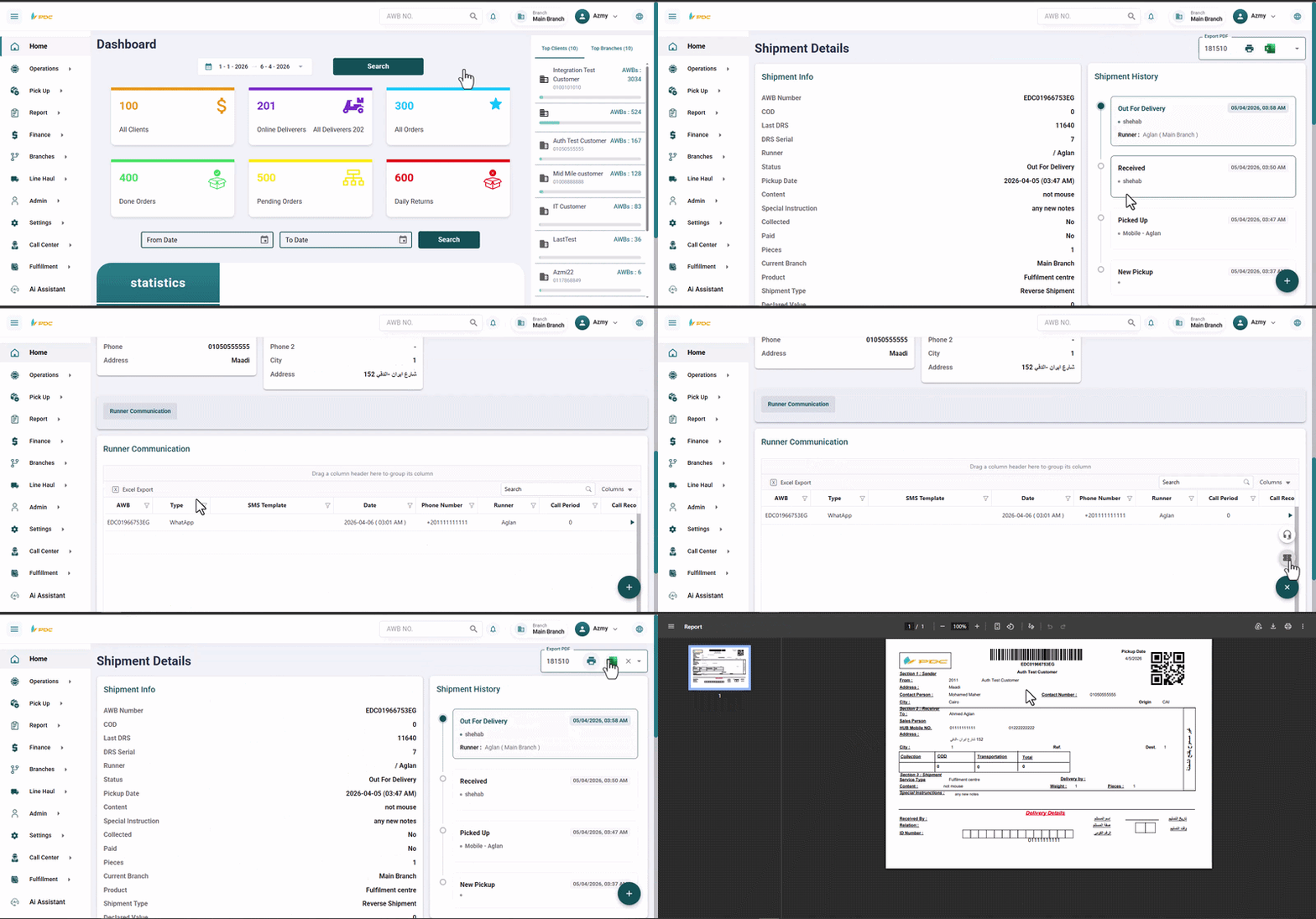
This feature is especially useful for customer service and operations teams who need fast access to shipment information.
Copy Similar Shipment
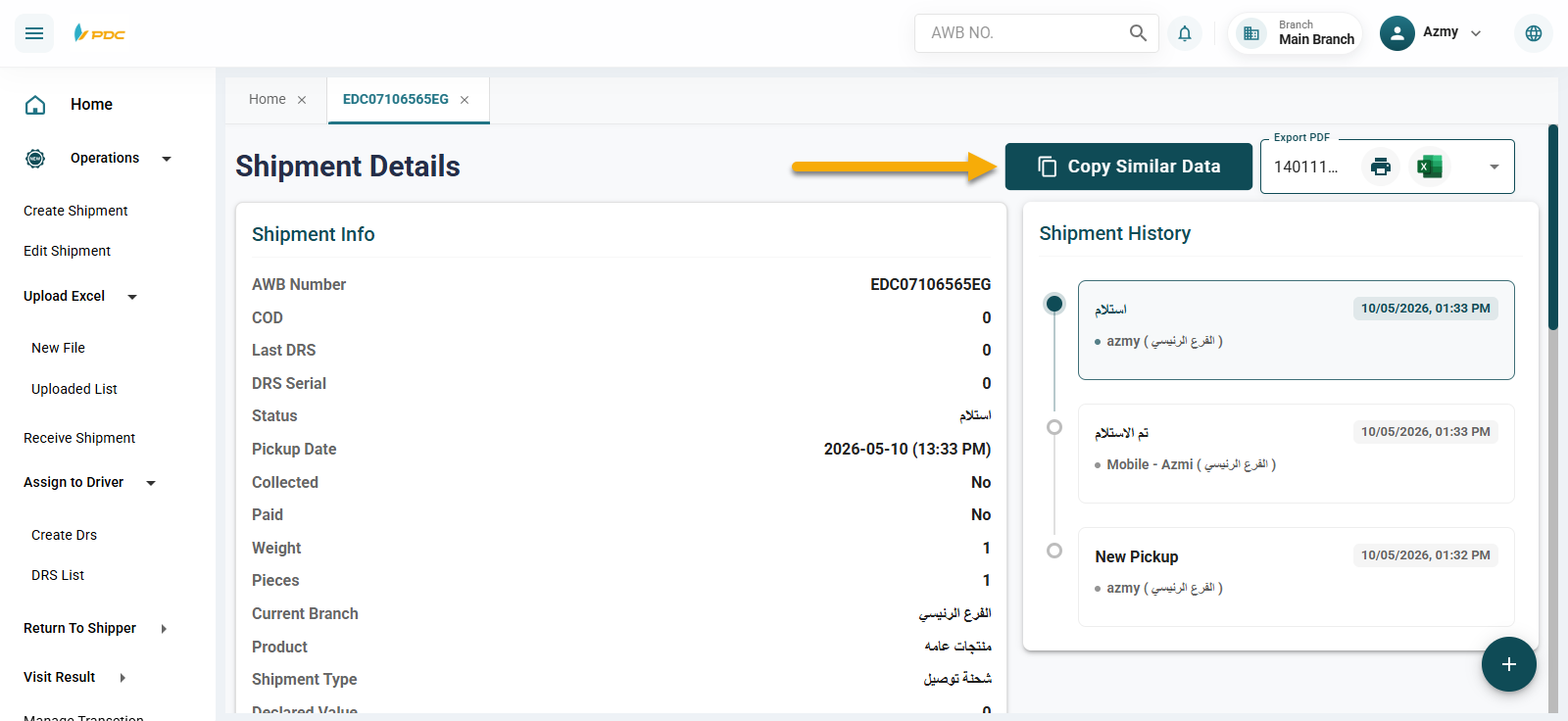
The Copy Similar Shipment button is used to simplify and speed up the process of creating a new shipment using the same details as an existing shipment.
When clicking this button, the system automatically redirects the user to the Create Shipment screen with the current shipment data already filled in.
How to Use
- Select the required shipment.
- Click the Copy Similar Shipment button.
- The system will open the Create Shipment screen with the same shipment details pre-filled.
- The user can modify any required data and then click Save to create the new shipment.
Benefits
This feature helps to:
- Save time and effort
- Reduce repetitive manual data entry
- Speed up the creation of similar shipments
- Minimize data entry errors
This feature is especially useful when creating multiple shipments for the same customer or shipments with repeated shipping details.
POD – Proof of Delivery
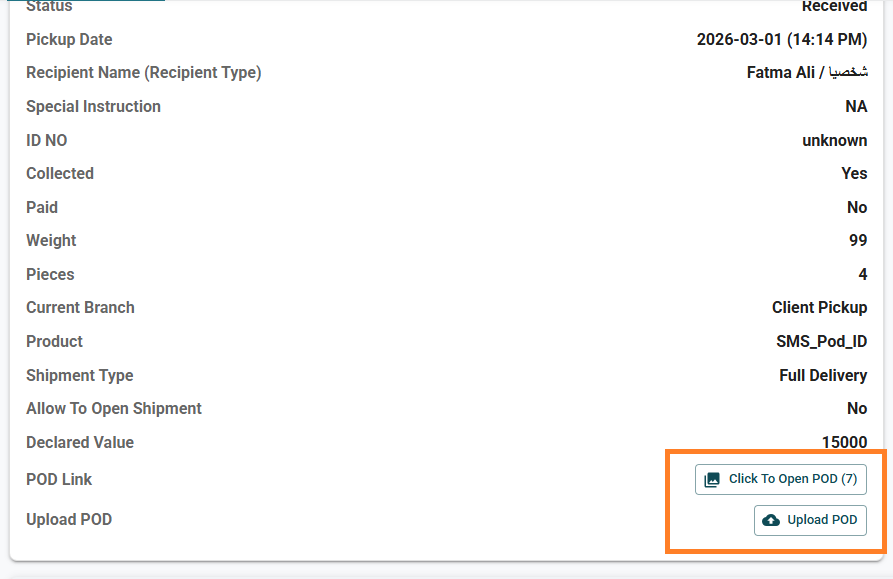
The Shipment Details page allows users to manage the Proof of Delivery (POD) images associated with a shipment. From this section, users can:
- Attach new POD images to the shipment to provide proof of delivery and upload any required supporting images or documents.
- View previously attached POD images for the shipment from the POD section within the Shipment Details page.
This allows users to easily access, review, and manage all Proof of Delivery images associated with the shipment from one place.
Direct Message
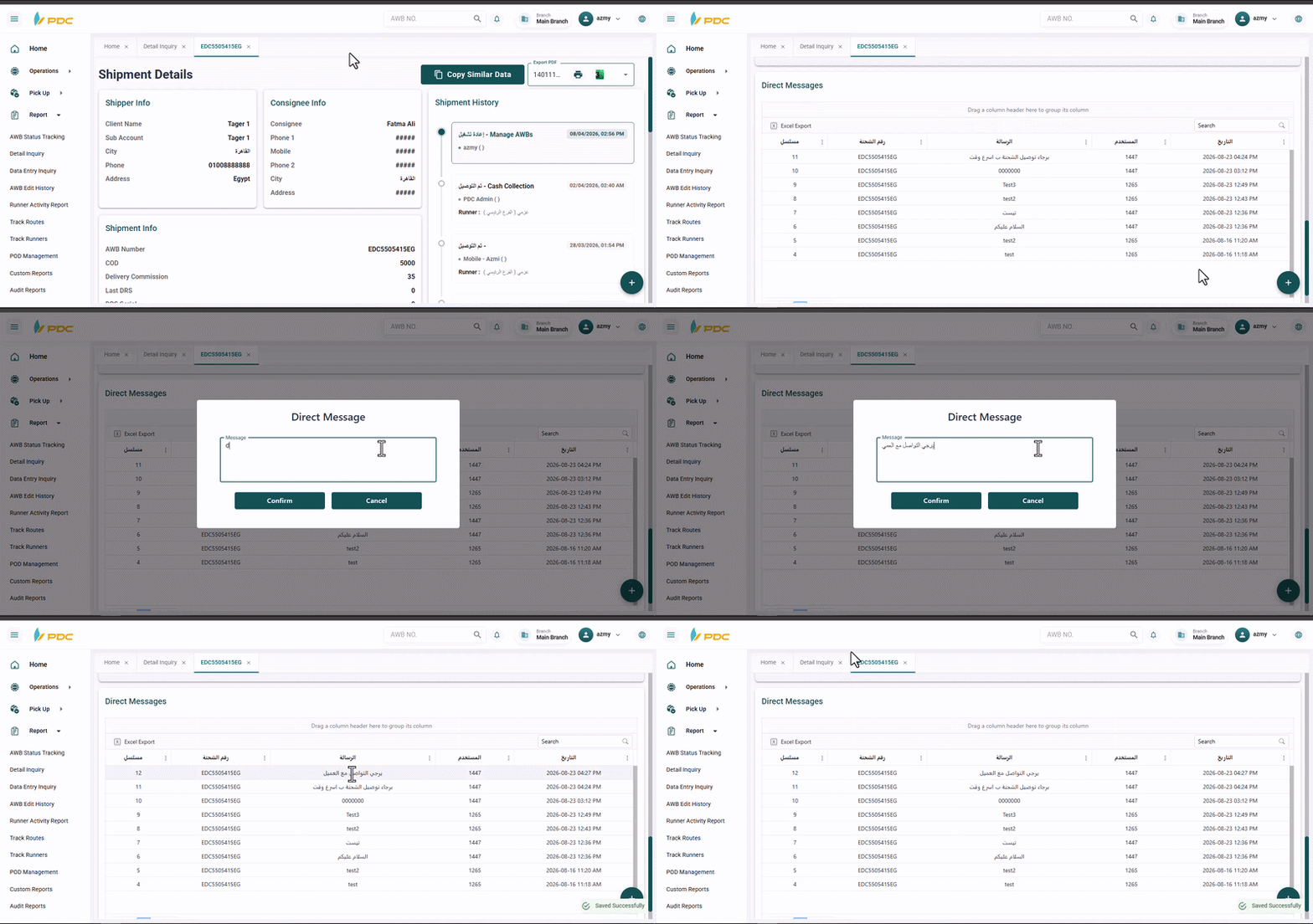
The Direct Message tab has been added to the Shipment Details page to allow operations staff to send a direct message to the courier through the mobile application.
The message is added as a comment on the shipment, allowing the operations team to provide the courier with specific instructions, notes, or important information related to the shipment they are responsible for delivering.
How to Use:
- Open the Shipment Details page.
- Navigate to the Direct Message tab.
- Enter the required message or instructions.
- Send the message.
Once sent, the message is delivered to the courier through the Mobile App and appears as a comment related to the shipment, allowing the courier to review it before or during the delivery process.
Benefits
This feature helps to:
- Provide couriers with specific instructions related to individual shipments.
- Improve communication between the operations team and couriers.
- Ensure important shipment-related information reaches the courier directly.
- Reduce the need for separate communication channels when handling shipment instructions.
Touches
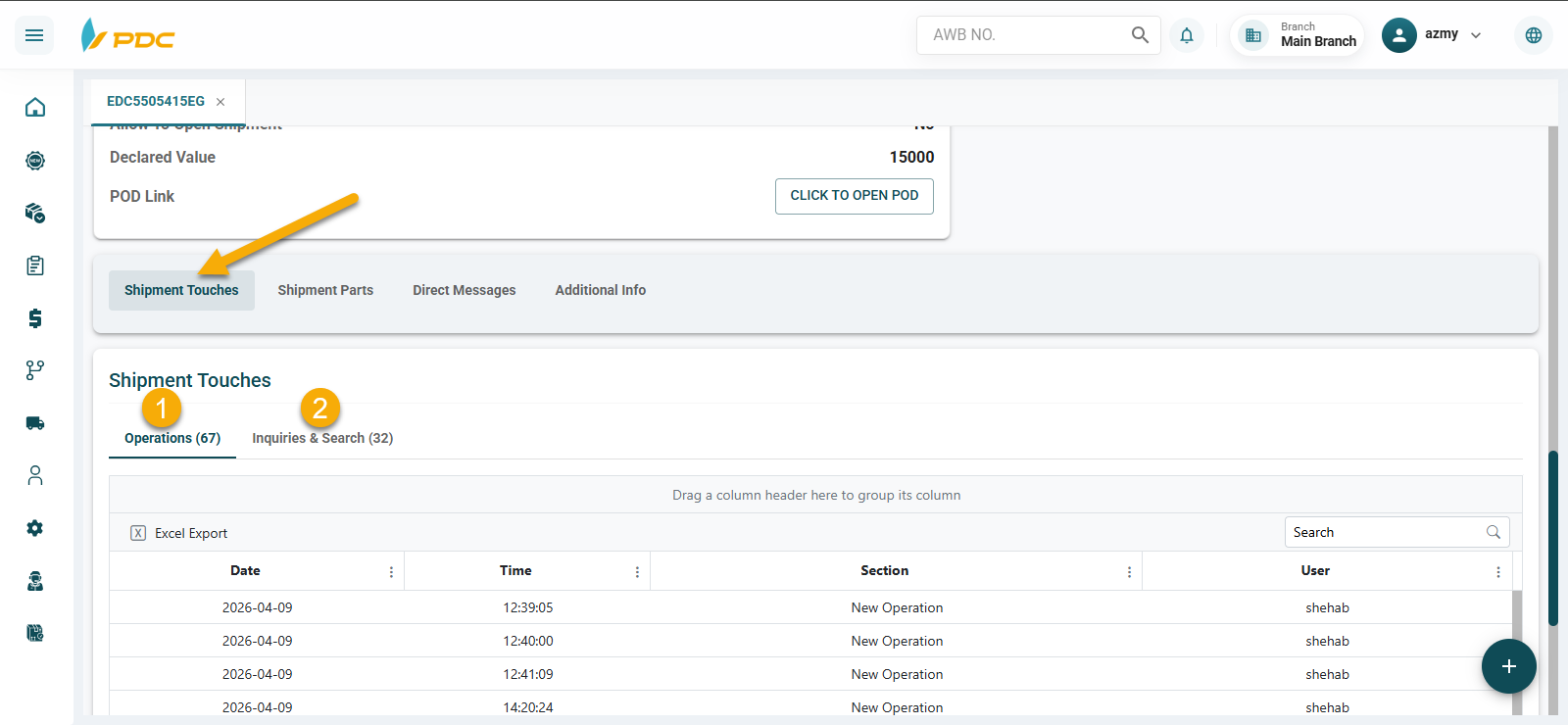
The Touches section is available within the Shipment Details page and is used to display all actions and activities performed on the shipment throughout the system.
This section allows operations staff to track the different interactions and actions performed on the shipment and provides a clear record of its activity.
The Touches section is divided into two main categories:
1. Operations Touches
This section contains all actions performed on the shipment through the system's Operations screens.
It helps users track the operational activities performed on the shipment and review the changes made throughout its processing cycle.
2. Inquiry & Search Touches
This section contains activities related to viewing or searching for the shipment through the system's Inquiry and Search screens, such as:
- Shipment Details
- Detailed Inquiry
- Other inquiry and search screens.
This allows users to track when the shipment was accessed or searched for through different inquiry screens.
Benefits
The Touches section provides a comprehensive activity record for the shipment, helping users to:
- Track all actions performed on the shipment.
- Review the operations and changes made to the shipment.
- Follow the shipment's activity history.
- Simplify auditing and operational follow-up.
- Identify and review any actions performed on the shipment.
Quick Action Icons
On the right side, you’ll find a set of handy icons:
- 💬 Support Messages — Check responses from the VSoft technical team.
- 🔔 Notifications — Stay updated on important events and alerts.
- 🤵 Profile — View or update your company’s details, and log out securely.
- 🌐 Language Switcher — Instantly switch the system language.

These tools ensure you’re always just one click away from key system features.
2: Main Menu Overview
The Dispatch App features a side navigation menu with 7 main tabs, each designed to organize your shipping operations efficiently. Every main tab contains relevant sub-tabs to help you navigate to specific tools and data. When you click a tab, its content is dynamically loaded in the main page area.
Home
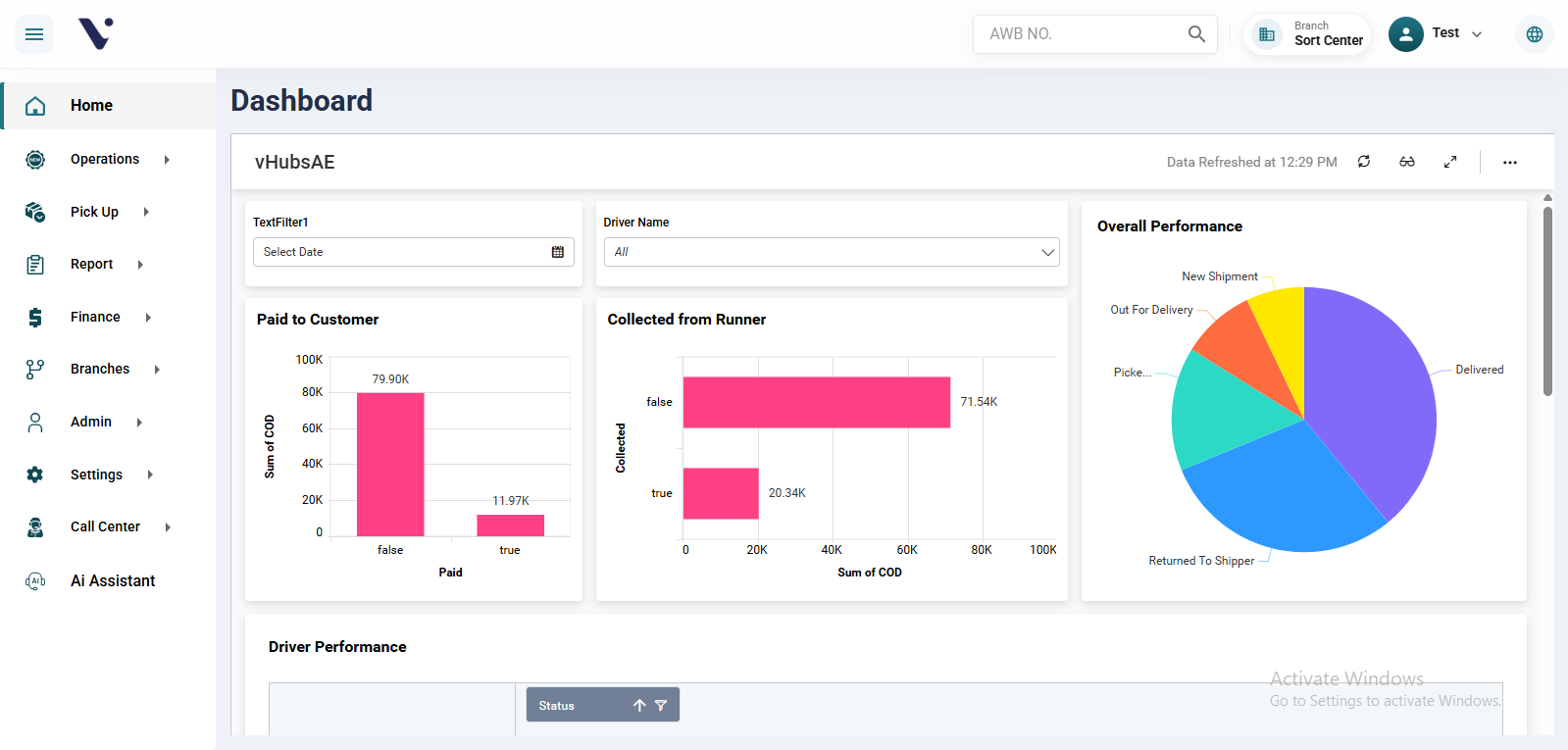
The Home tab takes you back to the main control panel, where you can get a quick overview of your system and shipments. It serves as the starting point for your work and a reference point you can return to at any time.
The page contains the Dashboard, which displays a set of statistics and visual data such as Paid to Customer, COD Collected from Driver, and Overall Performance. This allows you to monitor operational progress and track financial and performance metrics quickly and efficiently, as shown in the image.
Operations
The Operations tab is the operational powerhouse of the Dispatch App. It contains 9 sub-tabs, each with its own specialized tools — many with additional nested actions. Whether you’re creating, assigning, receiving, or reversing shipments, this is your daily logistics control center.
Here’s what you can do under Operations:
- Create Shipment — Manually create a shipment with full sender, recipient, and package details.
- Upload Excel — Bulk upload shipments from a prepared Excel file, and review past uploads by date range.
- Receive Shipment — Confirm pickup and reception from senders for accurate tracking from the start.
- Assign to Driver — Assign shipments to drivers and manage DRS (Delivery Run Sheets) in one place.
- Return to Shipper — Return shipments to senders and track their pending or posted status.
- Visit Result — Record delivery outcomes (successful, failed, or rescheduled) and track their status.
- Manage Transactions — Reverse or cancel key actions such as:
- Cancel Excel imports
- Unpost transactions for:
Transaction ID,Collect From Runner,Collect From Branch,Pay To Customer,DRS
- Manage AWBs — Advanced actions like deleting an AWB, reversing collections, reversing payments, or editing AWB numbers.
- Reoperate Shipments — Restart or reprocess shipments previously canceled or returned.
The Operations tab is where logistics come to life — full of power, flexibility, and control over the shipment journey.
Reports
Gain full visibility over your operations:
- Track shipment statuses
- Monitor courier activities and routes
- Generate detailed shipment reports
Ideal for supervisors and managers who need real-time performance insights.
Finance
Manage the financial side of your logistics:
- Oversee client account balances
- Define core products
- Collect cash from couriers
- Handle client payouts
- Manage branch collections
- Generate client statements
All financial operations, centralized.
Branches
Coordinate branch-level logistics:
- Send/receive shipments between branches
- Handle shipment settlements
- Run inter-branch transaction inquiries
Admin Data
Control the core structure of your company:
- Input and manage company data
- Define and manage branches
- Add and update employees and couriers
The backbone of your operational setup.
Settings
Customize the system to fit your workflow:
- Manage message templates
- Define shipment statuses
- Set delivery failure reasons
- Organize zones and delivery cells
- Adjust other core default settings
This is where you shape how the system behaves.
3: Page Body (Tables)
Tables appear across many pages in the app. Knowing how to use them effectively is essential.
Column Filter
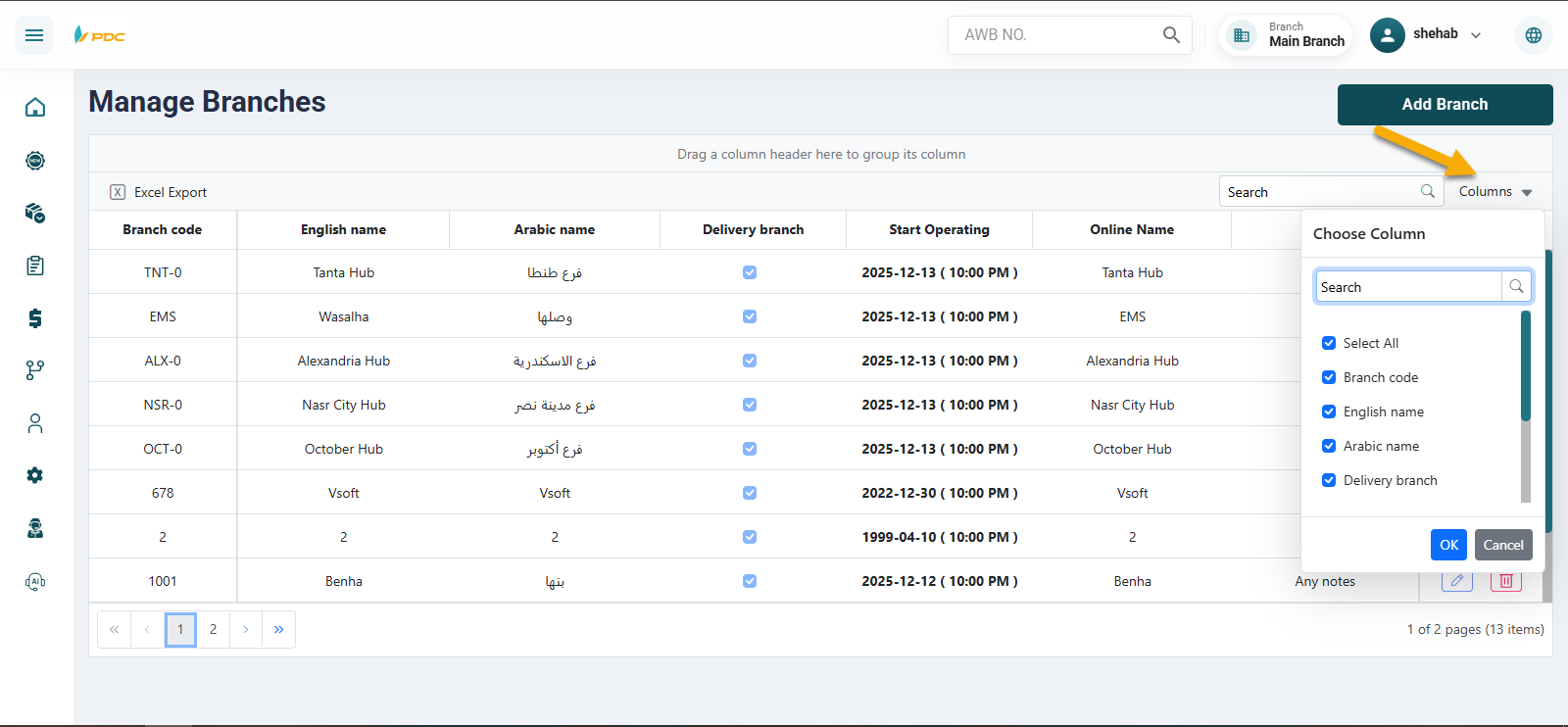
Click the three dots on a column header to filter or manage that column specifically.
Exporting Table Data
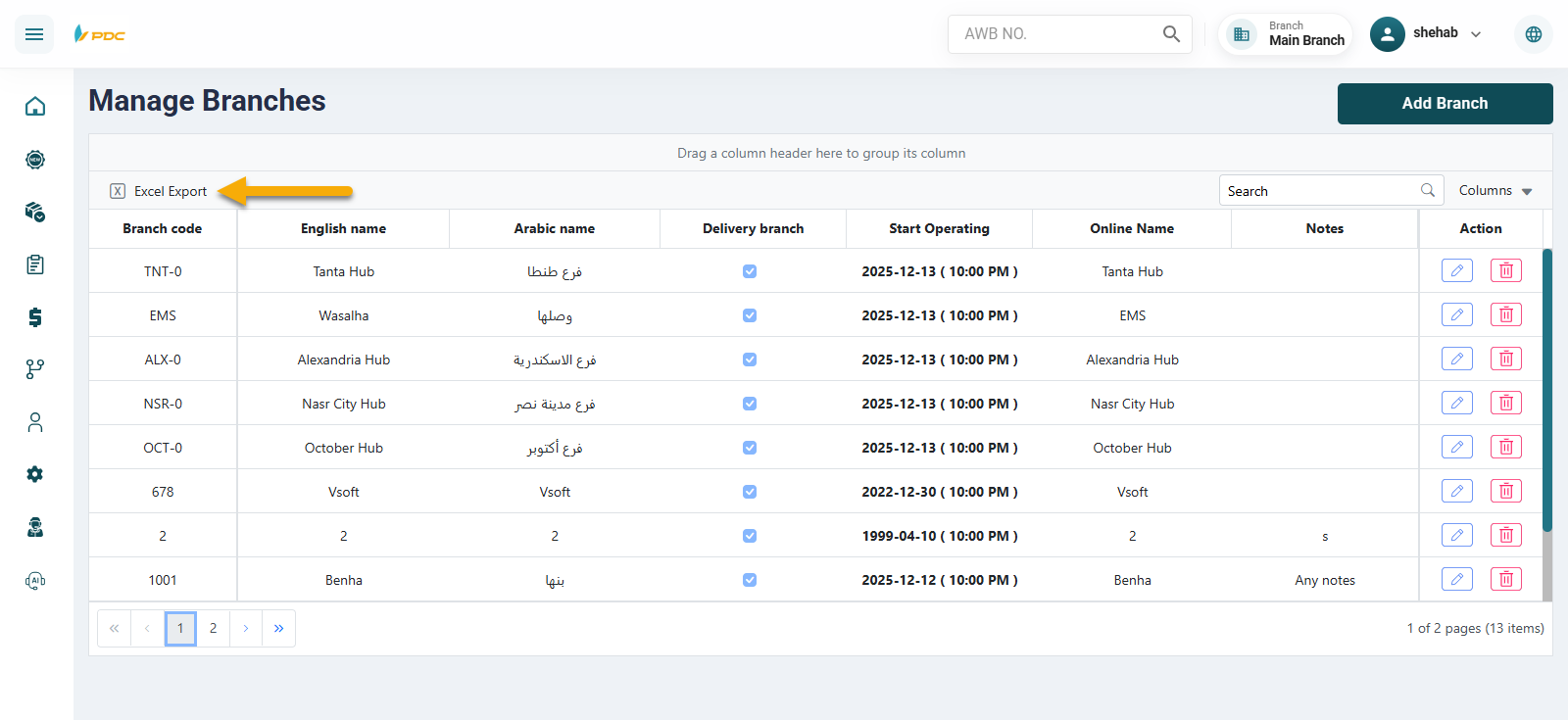
Click Export to print or download data as a CSV.
Exported data reflects active filters — clear them to export the full table.
Table Density
Choose between:
- Compact — More rows, less space
- Standard — Balanced layout
- Comfortable — More spacing for readability
Rows Per Page
Control how many rows appear per page: 10, 15, or 25.