Excel File Import Screen
The Excel File Import screen allows Operations staff to upload Sales Orders in bulk, instead of adding them individually through the Sales Orders screen. This feature helps save time and effort and significantly speeds up the order creation process.
How to Use
-
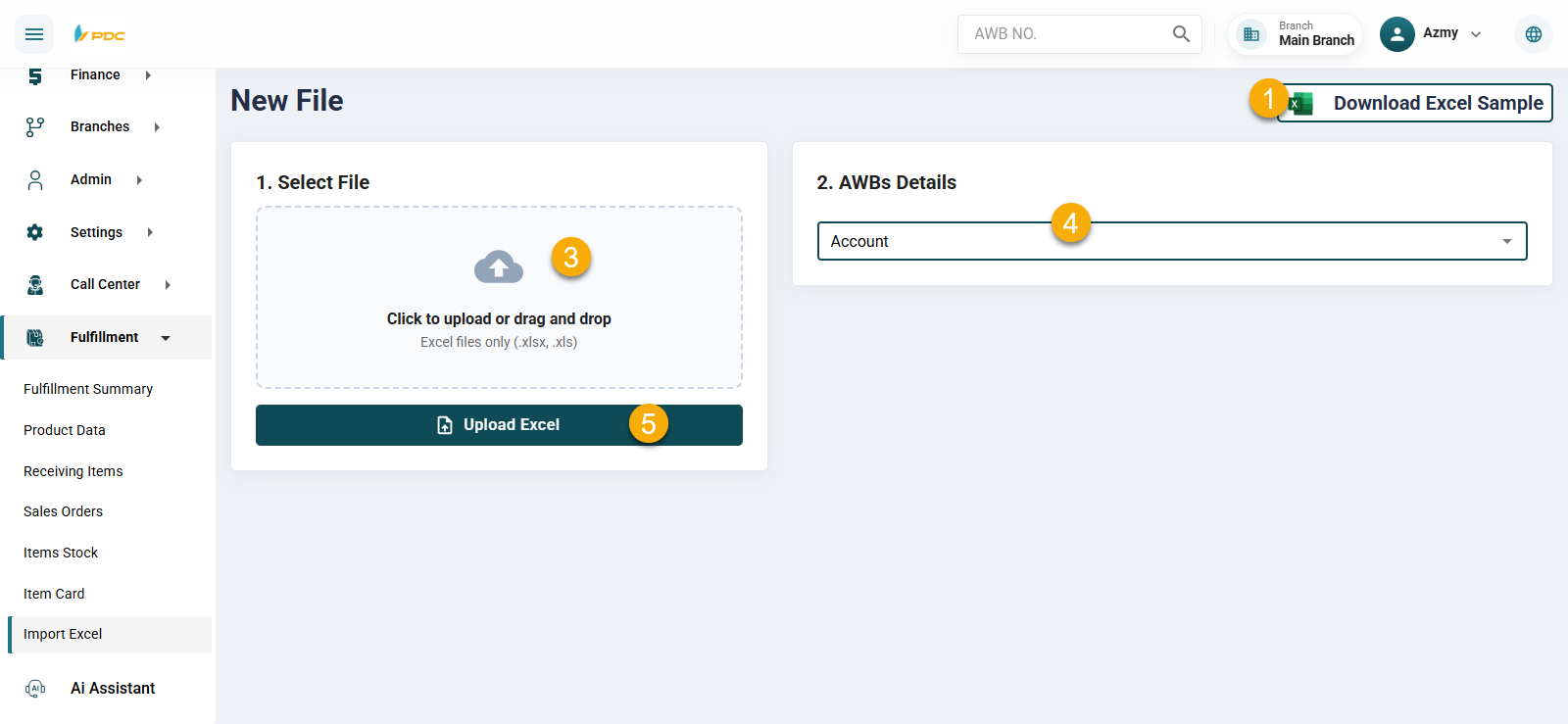
The Operations employee clicks on Download Excel Sample. The system downloads a template Excel file containing all the required columns for entering Sales Orders.
-
After downloading the file, the employee fills in the required Sales Order data in the Excel sheet.
-
The employee then clicks Choose File and selects the completed Excel file.
-
Next, the employee selects the Customer to whom the Sales Orders belong.
-
Finally, the employee clicks Upload Excel File to successfully register the Sales Orders in the system.
Excel File Data Fields
The Excel file includes the following fields for each Sales Order:
- Order Number
- Notes
- Consignee Phone Number
- Consignee Name
- Product Barcode
- Quantity
- Price
- Tax

Please ensure that all required data is entered correctly in the Excel file to avoid upload errors.