My Account
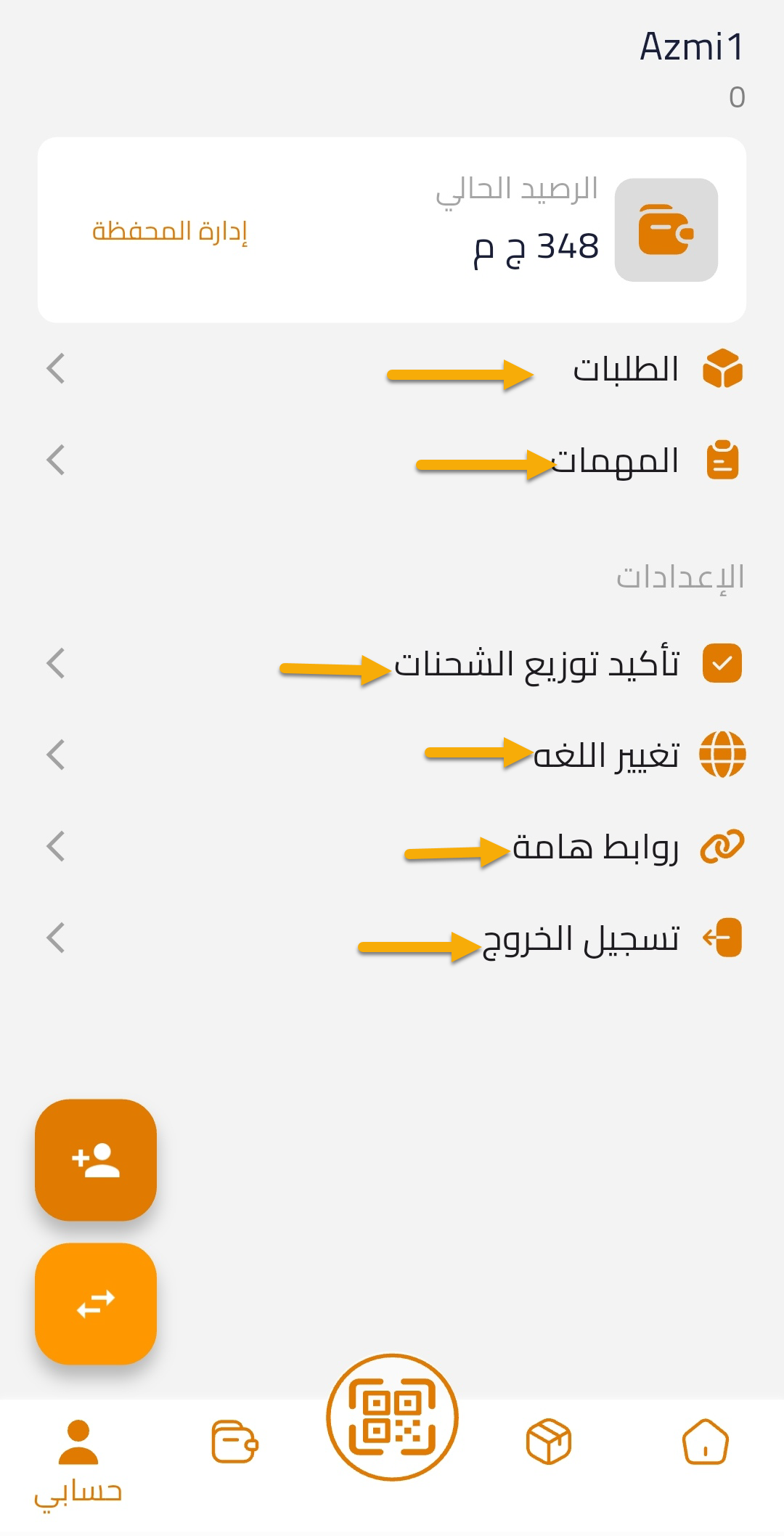
The My Account screen is one of the main pages in the Courier Application, allowing couriers to easily track their account details and manage their daily tasks.
This page displays the following:
- Courier Balance: Shows the total amount collected from customers.
- Orders: Allows the courier to view all shipments assigned to them that need to be delivered to customers.
- Tasks: Displays the pickup orders that the courier must collect from clients.
- Settings: Enables the courier to change the application language between Arabic, English, and Urdu. It also includes a Useful Links section that redirects the user to the MPS Dispatch website and the company’s YouTube channel.
- Logout Button: Allows the courier to safely log out of the application.
Confirm Shipment Assignment
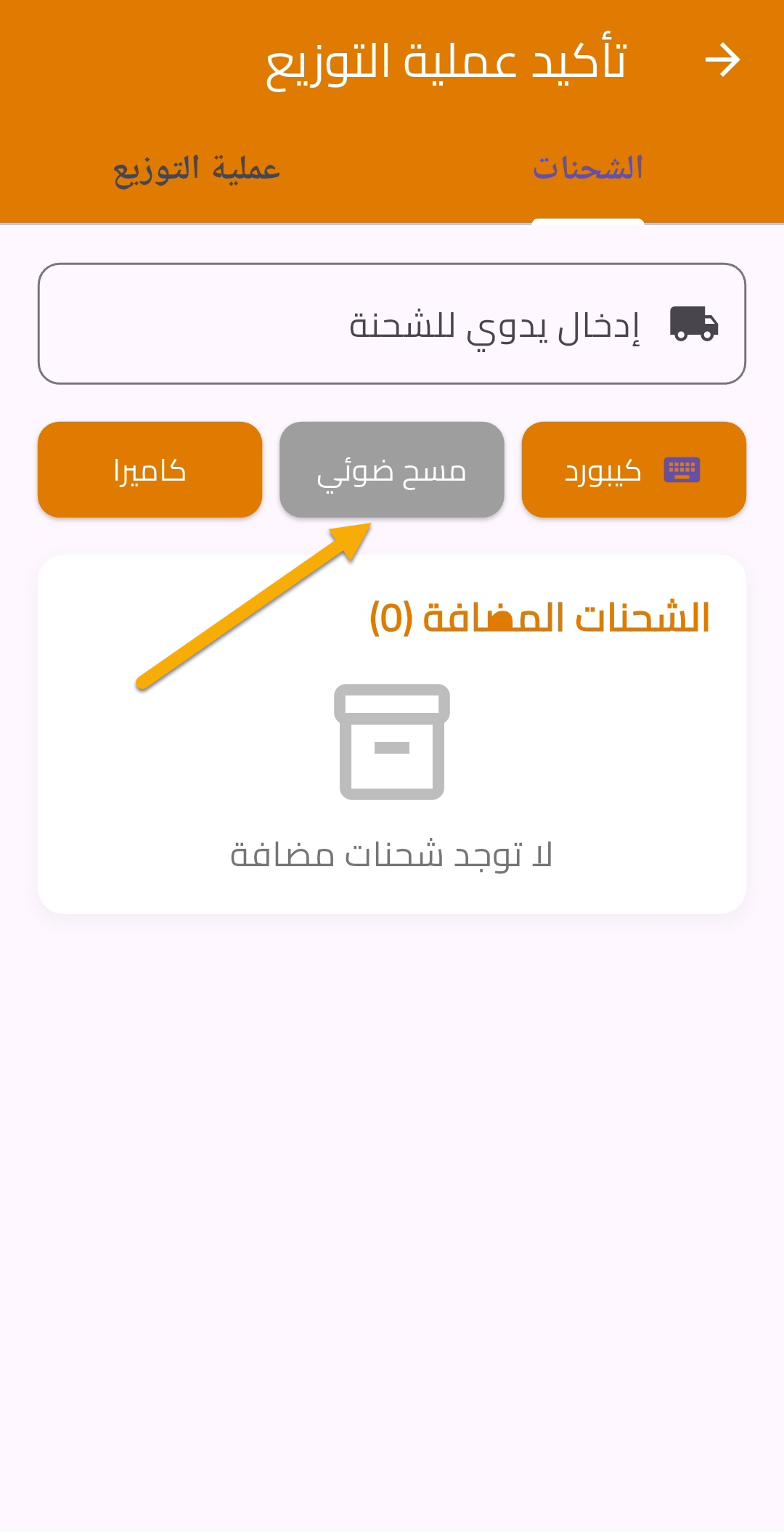
The Confirm Shipment Assignment screen is used to allow the courier to confirm the shipments assigned to them, whether those shipments were assigned by the operations team or self-assigned by the courier.
This step is required before the courier can start working on the shipments.
How It Works
- The courier opens the Confirm Shipment Assignment screen.
- Scans the QR Code of the shipments.
- Presses Confirm to complete the process.
After confirmation:
- The application will prompt the courier to perform a Sync Data.
- Once synced, the shipments will appear in the courier’s list, and they can start working on them.
DRS Lookup (Distribution Process)
This screen also includes the ability to view shipment details based on the Distribution Run Sheet (DRS).
How to Use:
- Enter the DRS number.
- The system will display all shipments associated with that DRS.
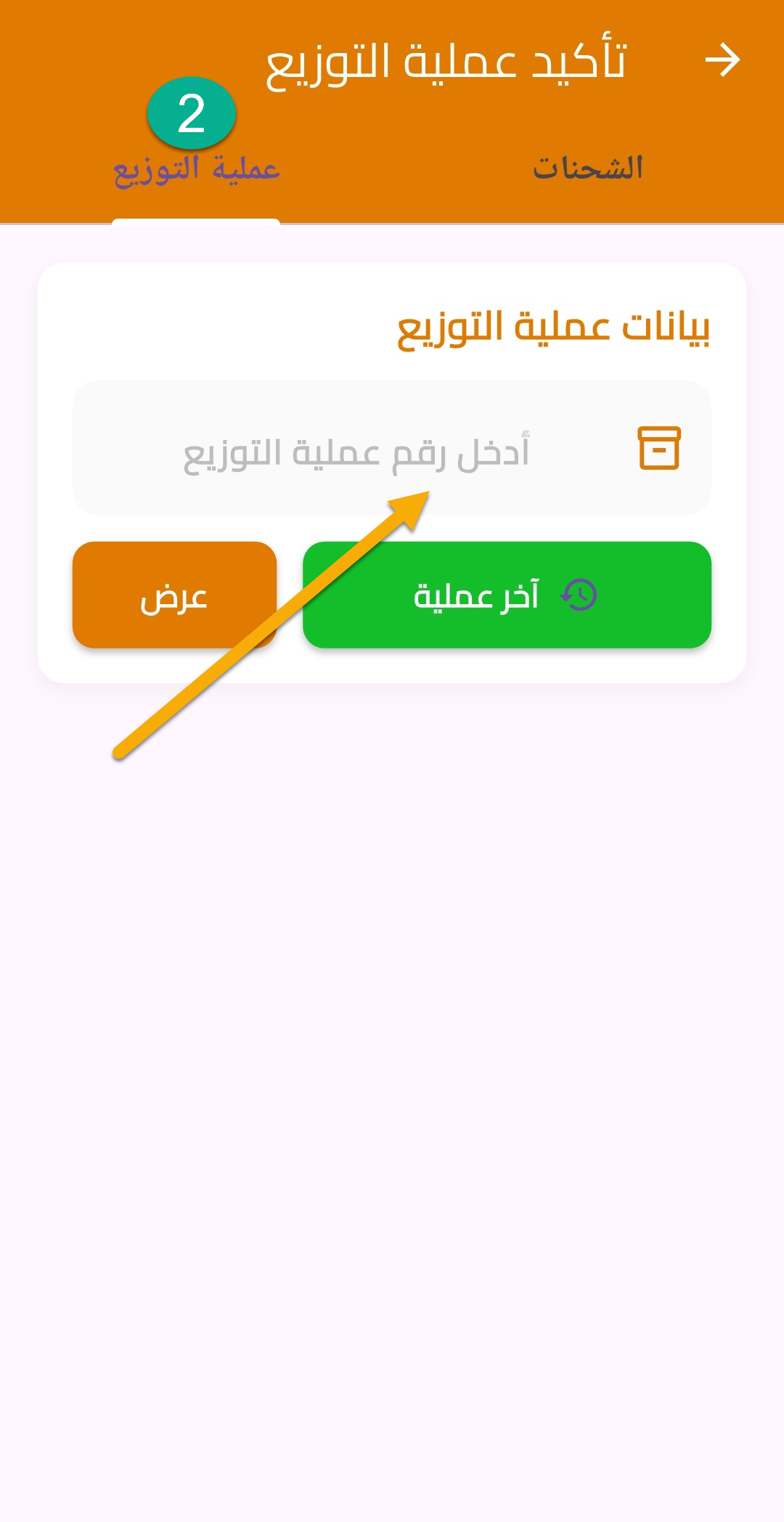
This helps the courier review and verify all shipments included in a specific distribution process.