Reports Section
We will now explain the Reports section available in the application.
1️⃣ Shipment Status Tracking Screen
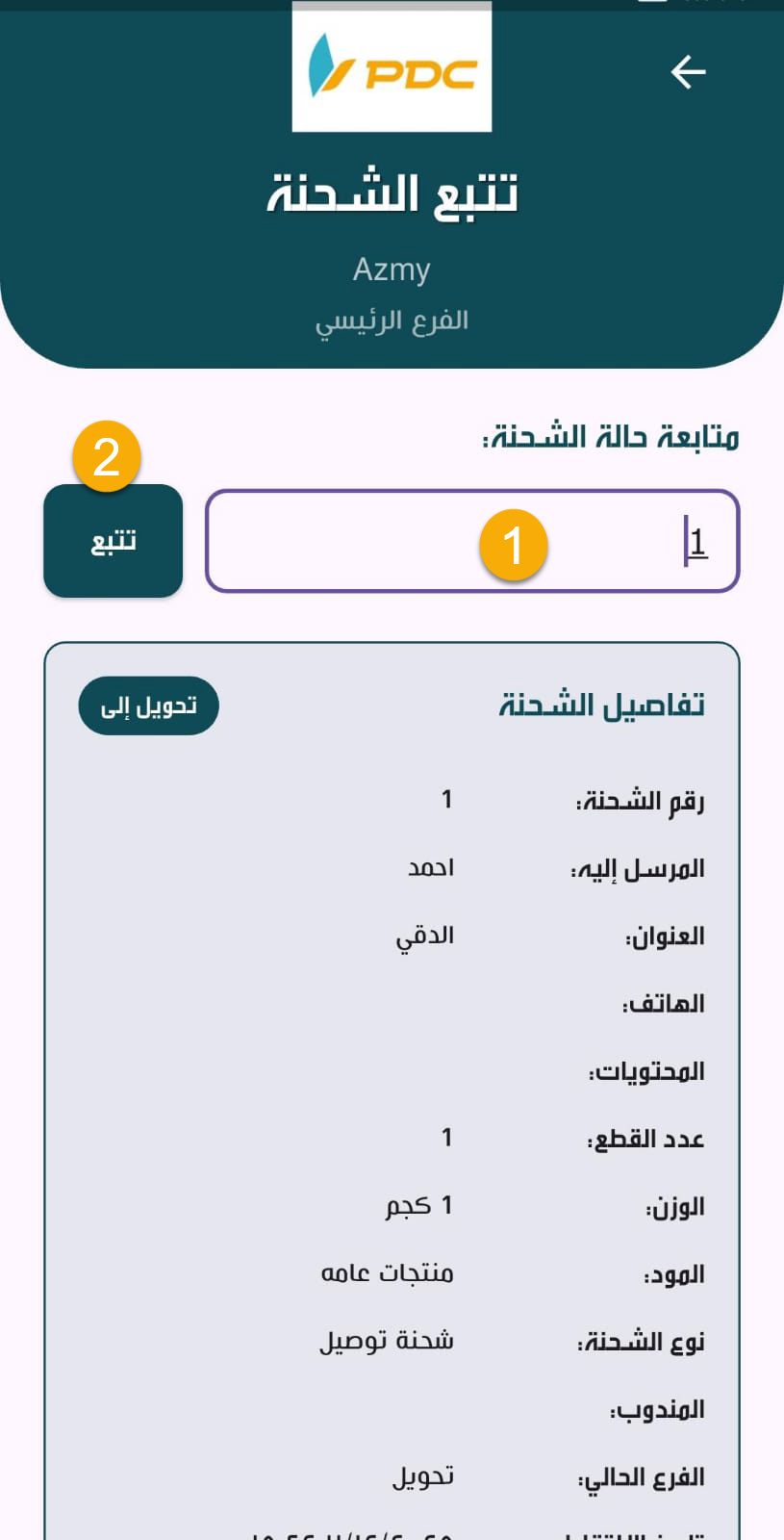
The Shipment Status Tracking screen allows users to review all details related to a specific shipment.
Through this screen, you can view:
-
Shipment details (Shipper, Consignee, Cash on Delivery amount).
-
All statuses the shipment has gone through, including:
- The exact timestamps.
- The user who updated each status.
-
If the shipment was transferred between branches, it will show:
- From which branch
- To which branch
-
Any complaints created for the shipment, including:
- Complaint details.
- The user who created the complaint.
-
The current shipment status.
-
Linked shipments (if the shipment consists of multiple pieces).
-
All actions performed on the shipment (shipment activity history).
How to Use:
Simply enter the Shipment Number and click Track to display all related details.
2️⃣ Courier Tracking Screen
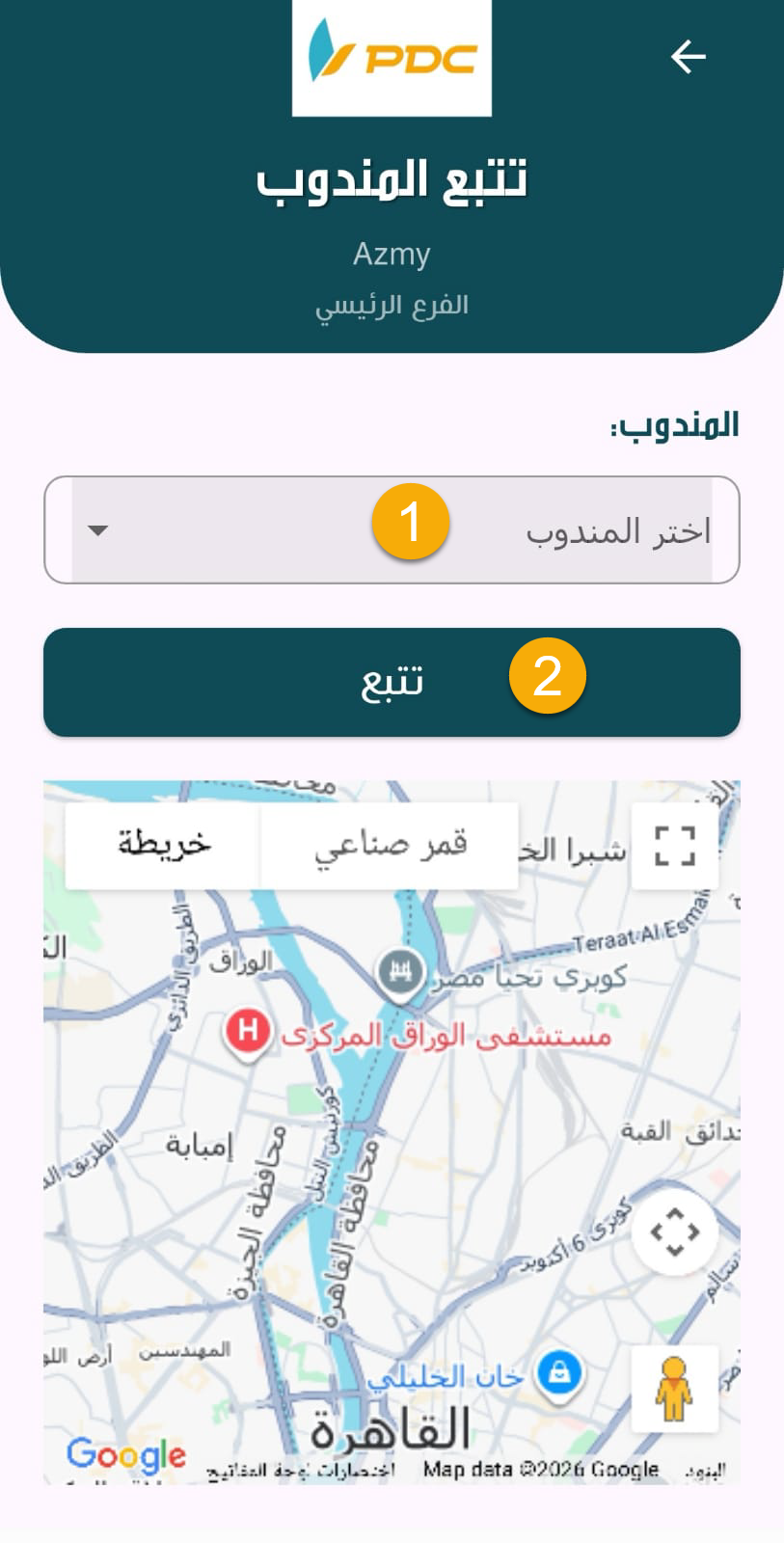
The Courier Tracking screen allows real-time monitoring of couriers.
How to Use:
- Select the Courier.
- Click Track.
The courier’s current location will appear on the map, allowing operations staff to verify whether the courier has reached the shipment’s delivery location or not.