Branch
Branches Section
We will now explain the Branches section within the application.
1️⃣ Send Shipments
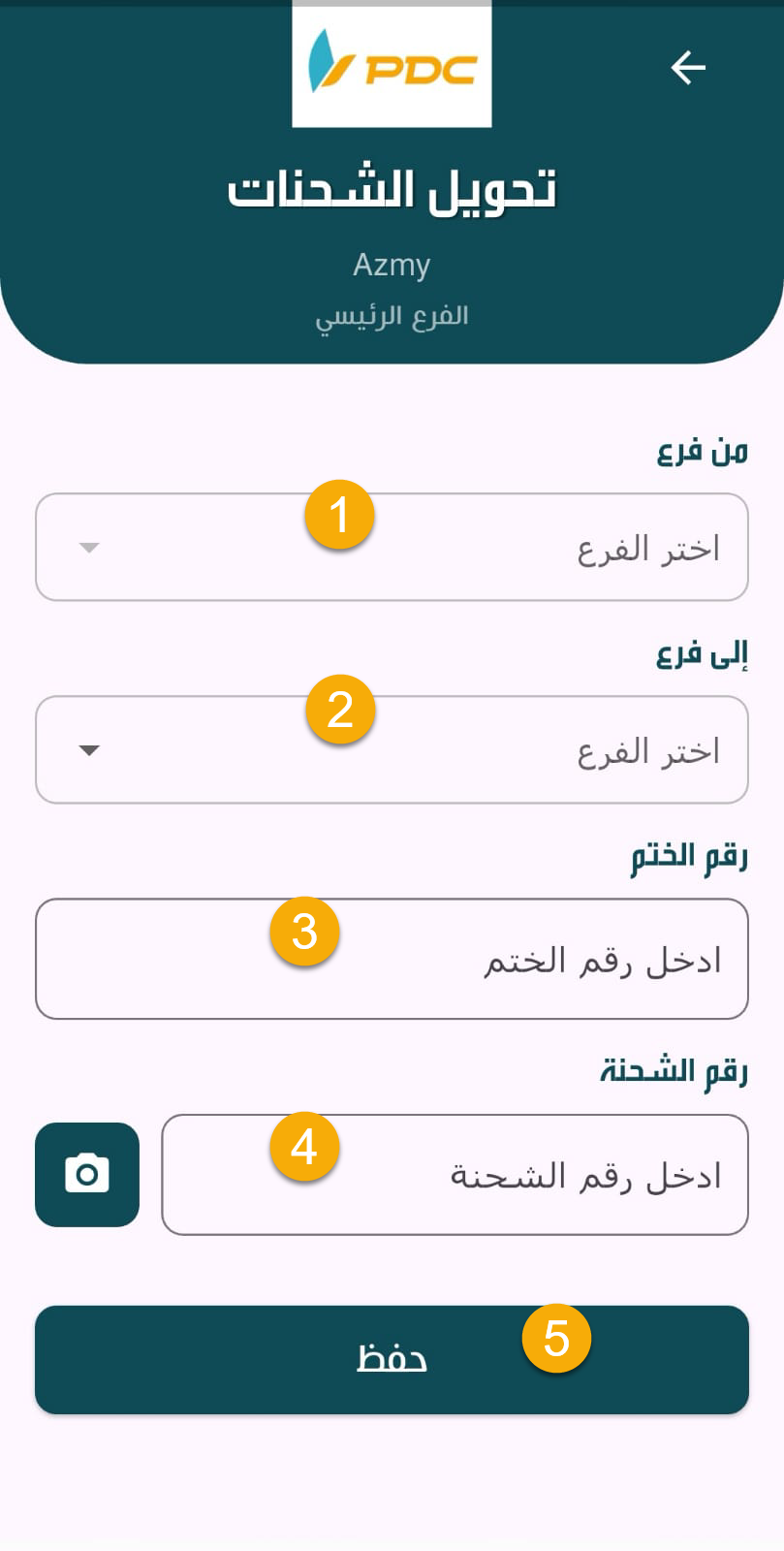
The Send Shipments screen allows the Operations employee to send shipments from one branch to another.
Steps:
-
Select:
- From Branch
- To Branch
- Seal Number
-
Enter the shipment numbers.
-
Click Save.
-
Confirm the process by approving the Posting action.
Once posted, the shipment transfer operation is officially recorded in the system.
2️⃣ Receive Shipments from Branches
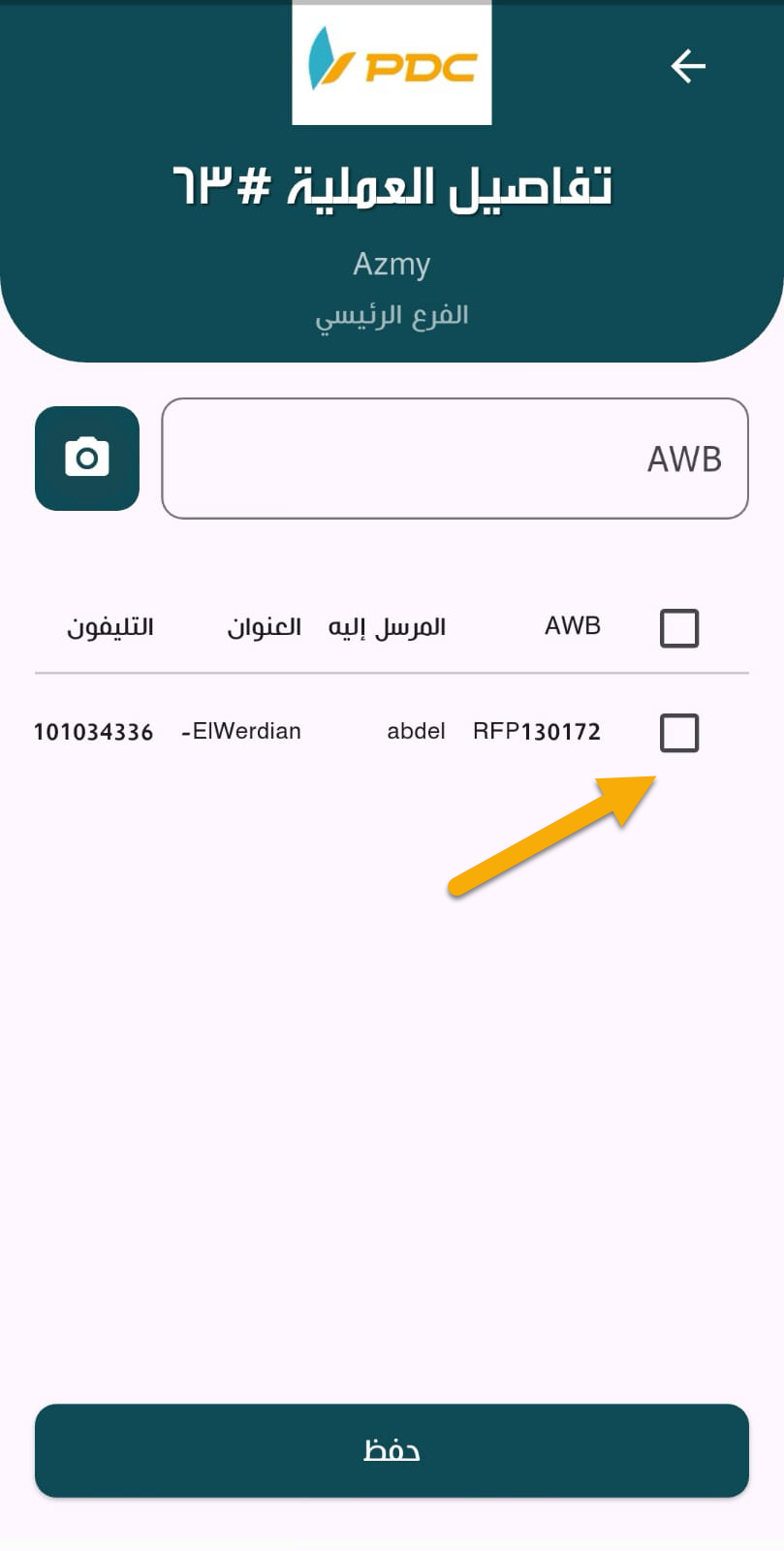
The Receive Shipments from Branches screen displays shipment transfer operations sent from other branches.
Steps:
-
In the Actions column, click the arrow button to open the specific transfer operation.
-
Review the shipment details.
-
Click on Shipments to proceed with receiving them.
-
Click Save to confirm the receiving process.
This completes the shipment receiving process from the sending branch.